WordPress Plugin Audit: How to Find and Fix Performance Bottlenecks
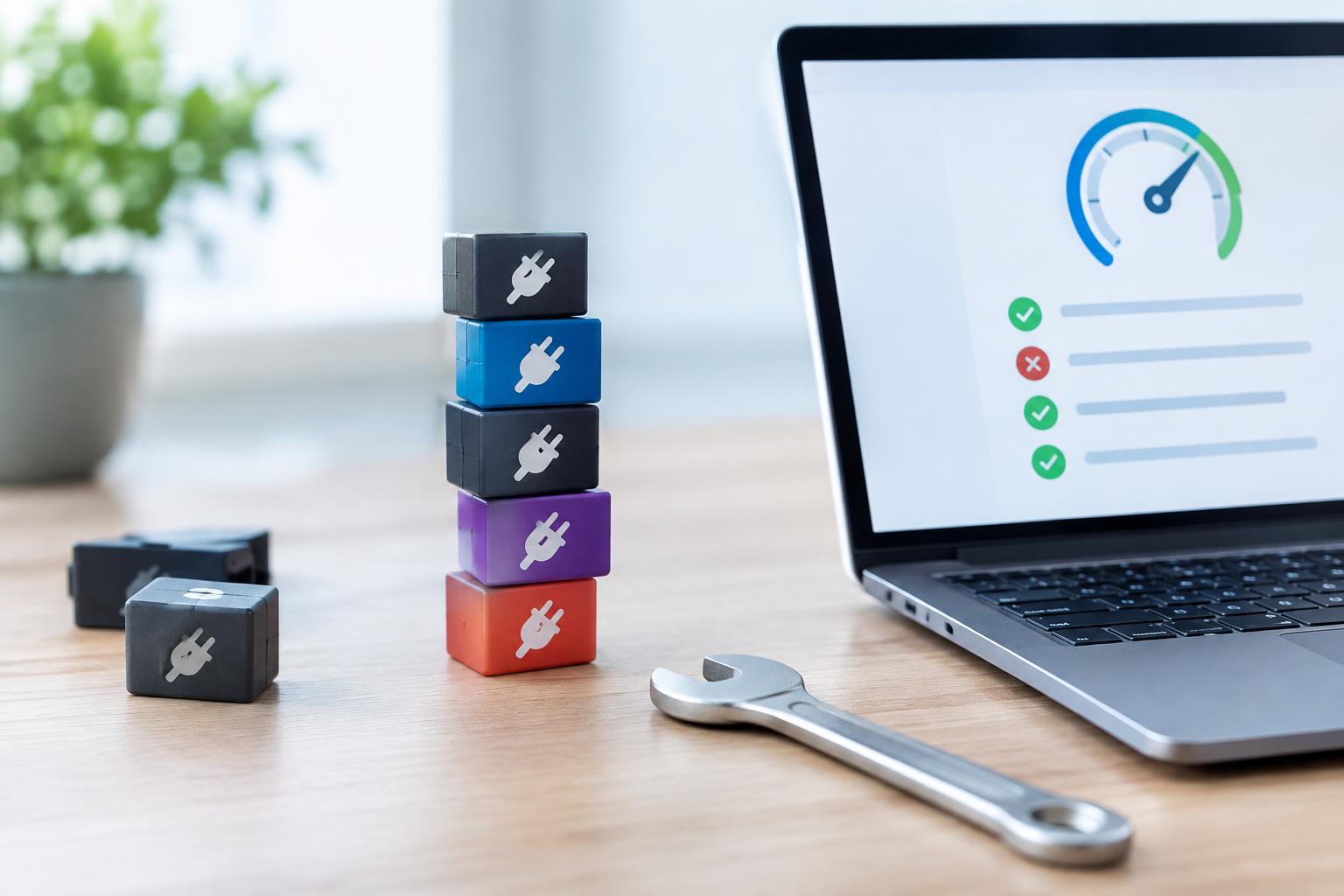
A slow WordPress site does not automatically mean you have too many plugins. A small plugin list can still contain one extension that loads heavy scripts, adds costly database work, or runs on every page when it is only needed in one place. Conversely, a well-built plugin that supports an important function may have little practical effect on the experience your visitors receive.
A useful WordPress plugin audit is therefore a diagnostic process, not a spring-cleaning exercise. The goal is to identify whether a plugin is genuinely contributing to a measurable slowdown, understand what it does for the business, and make a safe decision about keeping, configuring, replacing, or removing it. That matters especially for Canadian businesses with lead-generation sites, active blogs, membership areas, or WooCommerce stores where a careless change can disrupt sales or customer service.
At WPAssist, we treat plugin performance as part of the wider website system. Hosting, themes, page templates, images, caching, third-party services, and traffic patterns can all affect speed. A disciplined audit helps you avoid blaming the nearest plugin while the real issue remains untouched.
Quick Answer
To find plugins slowing down WordPress, first establish a repeatable performance baseline, then compare the same important pages after disabling or changing one suspected plugin at a time on a staging copy. Look for a meaningful, repeatable difference in load behaviour and verify that the plugin’s feature is not essential before replacing or removing it. Plugin count alone is not proof of a speed problem.
Key Takeaways
- Measure key pages before changing anything so you have a baseline.
- Treat a slow result as a warning sign, not automatic proof that one plugin caused it.
- Test one suspected plugin change at a time on a staging copy.
- Protect important forms, checkout steps, tracking, and customer features before removal.
- Choose replacements based on required functionality, compatibility, and actual measured impact.
Why plugins can affect WordPress speed
Plugins extend WordPress by adding features, but those features have to run somewhere. A plugin may add code to the browser-facing pages, perform work on the server, make calls to another service, query the database, or schedule background tasks. None of these activities is automatically bad. They become a concern when their cost is noticeable on the pages and at the times that matter to visitors.
For example, a form plugin may be entirely appropriate on a contact page but needlessly load its styling and scripts across every blog post. A review widget may call an outside service before it displays. A visual builder add-on may add several libraries to an already complex landing page. WordPress plugins can enqueue front-end plugin scripts for public-facing pages, which is one reason an audit should consider what visitors actually load rather than only what appears in the Plugins screen.
It is also important to separate a plugin’s presence from its behaviour. Two sites can use the same plugin with very different outcomes because their themes, settings, caching configuration, hosting environment, content volume, and other integrations differ. A popular plugin is not inherently fast or slow in every installation; it must be assessed in the context of your site.
This audit is narrower than a full performance investigation. If your site has large unoptimized images, a slow server response, or a page template packed with third-party embeds, removing plugins may produce little change. Those broader causes are covered in our overview of common WordPress performance bottlenecks; a plugin audit helps determine whether extensions are one of the places worth investigating first.
What should you measure before a plugin audit?
Start with pages that represent meaningful visitor journeys, not only the home page. For a service business, that may be the home page, a key service page, and the contact page. For a store, include a product page, cart, checkout, and account area where appropriate. For a publishing site, test a typical article and a category archive as well as the home page.
Record the same conditions for each test as closely as possible: the exact URL, whether you are logged in or logged out, the device or viewport, and the time of day if traffic varies substantially. Run several tests rather than relying on a single result. Networks and servers fluctuate, and a one-off slow test can be caused by a temporary condition unrelated to a plugin.
Build a practical baseline
Your baseline does not have to be complicated, but it should be useful enough to compare later. Note the page’s visible loading experience, server response behaviour, total page weight, number of requests, and any obvious render-blocking or long-running scripts identified by your testing tool. Also note the business function of the page. A small improvement on a rarely visited archive may not justify risk, while a modest improvement at checkout could deserve close attention.
Performance measurements are evidence to investigate, not a verdict by themselves. A good baseline tells you what changed after a controlled test. It does not prove why the change happened until you have isolated the condition that changed.
WPAssist generally begins with the visitor-facing paths a business relies on most. That keeps the audit focused on practical reliability and loading experience instead of producing a long list of technical observations with no clear priority.
Review the plugin inventory with context
Export or document the active plugin list and add several notes beside each item: what feature it provides, which pages depend on it, who owns its settings or licence, when it was last used, and whether another plugin or theme already supplies the same capability. Include inactive plugins as well. An inactive plugin usually does not run on the front end, but retaining unused code can create maintenance and security clutter.
Look carefully for overlap. It is common to find two image tools, multiple analytics insertions, duplicate redirect managers, several form products, or a page builder plus add-ons that repeat built-in functions. Overlap does not prove a performance issue, but it creates a stronger reason to confirm which component is actually required.
How do you identify a real plugin bottleneck?
Begin with a short suspect list based on observable clues. Prioritize plugins tied to heavy page features: sliders, pop-ups, live chat, social feeds, map embeds, page-builder add-ons, search and filtering tools, related-post engines, backup jobs that run during busy periods, and integrations that connect to third-party services. Also review plugins that inject assets site-wide even though their features appear on only a few pages.
Then match the suspect to the affected page. If only product category pages are slow, investigate product filters, search, stock displays, recommendation tools, and catalogue-related code before blaming a contact form plugin. If a landing page is slow, inspect its pop-up, video, tracking, builder modules, and external embeds. The closer the plugin’s function is to the affected experience, the stronger the reason to test it.
A useful decision rule is simple: a plugin becomes a credible performance suspect when its function appears on the slow page and a controlled change produces a repeatable improvement. Until both conditions are present, treat it as a lead rather than a confirmed cause.
Use controlled comparisons, not assumptions
Test one meaningful change at a time. On a staging site, deactivate the suspected plugin or turn off the specific feature you are testing, clear the relevant caches, and re-test the same URLs under the same conditions. Compare several runs with the original baseline. Then restore the original state before testing the next candidate so results do not become muddled by multiple simultaneous changes.
For a WooCommerce example, imagine a store where category pages feel sluggish but product pages are acceptable. A filtering plugin that loads only on category pages is a sensible suspect. Disable it on staging, clear caches, and re-test the category page several times. If the page improves consistently but filtering disappears, you have identified a trade-off to solve, not permission to remove the plugin on the live store immediately.
Testing a suspected plugin change on a staging copy lets you test changes safely before applying them to the production site. That separation is especially valuable when the affected plugin touches payments, forms, customer accounts, membership access, or search visibility.
Do not stop at a faster metric. Walk through the function that the plugin provided. Submit a form, add an item to cart, calculate shipping, sign in, search the site, view a mobile page, or complete another task that reflects your visitors’ real use. A speed improvement that breaks a revenue path is not an improvement.
Which warning signs deserve the closest review?
Some patterns justify earlier investigation, although none confirms causation on its own. A plugin that suddenly becomes more resource-intensive after an update may be worth comparing. So may a feature that loads several external files, produces visible layout shifts, or appears in a performance test as a long-running script. Repeated database activity or slow administrative screens can also be relevant, particularly on content-heavy or ecommerce sites.
Be cautious with broad labels such as “bloated.” A plugin may have many settings yet impose little cost on the public pages you care about. Another may look simple but rely on an outside service that delays a visitor’s experience. Your audit should ask what happens on a specific page, for a specific visitor journey, rather than rely on reputation or plugin size.
Watch for site-wide loading of page-specific features
A frequent issue is a feature that belongs on one page but loads everywhere. Think of a map used only on the contact page, a booking widget used on one service page, or a form library needed in a single campaign. The question is not necessarily whether the plugin must go. It may be whether its settings, theme integration, or replacement can limit loading to the pages where the feature is needed.
Another warning sign is duplication created over time. A marketing team may add a pop-up tool, then later add a second consent or analytics tool through a theme, tag manager, or another plugin. The visible result may be one banner, while the browser receives more than one set of scripts. Inventory work often reveals these overlaps faster than a list of generic speed tips.
Once the plugin inventory is cleaned up, managed WordPress updates can help keep the remaining extensions current, monitored, and easier to troubleshoot after changes.
How can you replace or remove a plugin safely?
Once a plugin appears to have a measurable cost, decide whether you can configure it better, replace it, or remove it. Configuration is often the lowest-risk option. You may be able to disable unused modules, reduce how broadly the plugin loads, remove an unnecessary integration, or stop a visual feature from appearing on pages where it adds no value.
Replacement makes sense when the feature remains important but the existing tool is no longer a good fit. Compare candidates against your actual requirements: the essential feature set, compatibility with your theme and WordPress version, support for WooCommerce or other integrations, update history, licensing, privacy requirements, and how the tool behaves on your tested pages. A replacement that has more features than you need can recreate the same problem under a different name.
Before deactivating or replacing an extension, create a backup before plugin changes. A current backup gives you a recovery point if the plugin holds settings, custom content, shortcodes, form entries, redirects, or template behaviour that the site still needs. Confirm that you know how restoration works and that the backup includes the files and database required for your site.
Plugin removal should happen only after you have confirmed that the feature has been replaced or is genuinely unused. Deactivation may remove a visible function immediately, but it can also leave shortcodes, widgets, custom post types, data tables, or embedded code behind. Review the front end and administration area after each step, then delete the inactive plugin only when you are satisfied that you no longer need its files, settings, or rollback option.
A compact plugin change checklist
Use this sequence when a suspected plugin has earned a place on your action list:
- Record baseline results for the affected pages and visitor tasks.
- Document the plugin’s purpose, settings, licence, and dependent features.
- Create and verify a current backup before changing the plugin.
- Test one configuration, deactivation, or replacement change on staging.
- Clear applicable caches and repeat the same performance tests.
- Test forms, checkout, login, search, tracking, and other affected functions.
- Deploy only the approved change, then monitor the live site for errors or missing features.
For a small brochure site, the review may fit within a relatively short maintenance window.. For a store with subscriptions, custom shipping, CRM connections, and campaign tracking, the same change can touch many systems. Scale the testing to the business risk, not simply to the apparent size of the plugin.
When should you bring in WordPress support?
Professional help is useful when the evidence is unclear, when several plugins may interact, or when the suspected extension supports a high-value function. It is also sensible when testing requires staging access, server logs, caching changes, database review, or a rollback plan that your team does not routinely manage.
Do not assume that a plugin is the only issue because removing it creates a modest improvement. A faster result may reveal that the plugin was one contributor among several. Hosting capacity, page templates, image delivery, theme code, and third-party scripts may still need attention. A proper review connects the measured evidence to a practical order of work.
For instance, an online retailer may find that a product-filtering plugin contributes to slow category pages, but replacing it alone may not resolve the customer experience if unoptimized product images and a crowded template are still adding weight. In that situation, the sensible outcome could be a staged set of changes rather than a rushed plugin swap.
WPAssist approaches these reviews with the same priority in mind: protect the business functions that make the website useful, then reduce unnecessary load with evidence rather than guesswork. That is particularly important where a site’s forms, marketing tools, WooCommerce setup, or custom content depend on extensions that have accumulated over years.
Conclusion
A WordPress plugin audit works best when it replaces assumptions with controlled comparisons. Measure the pages that matter, connect each suspect to a real visitor journey, make one change at a time on staging, and validate every important function before anything reaches the live site. The result is not simply a shorter plugin list; it is a website with fewer avoidable performance risks and a clearer reason for every active extension.
If your team needs to improve loading time without risking important website features, WPAssist can assess the wider picture through WordPress page speed optimization and help prioritize safe, evidence-based changes.

Join Our Newsletter
Stay up to date on the latest WordPress tips and news