How to Prepare WordPress for Your Host’s PHP Upgrade
A hosting notice about a PHP upgrade can be easy to file away, especially when your WordPress website appears to be working. But the deadline matters: the host is changing part of the server environment that WordPress, your theme and your plugins depend on.
Before the change, confirm the target PHP version and schedule, review compatibility, test your important workflows in staging, and make sure you have a usable backup and a recovery plan. If you cannot confirm who will handle any part of that work, ask your host or WordPress support provider before the deadline rather than assuming the upgrade includes application-level testing.
This guide focuses on what a business owner or marketing team needs to organize before a host-mandated change. You do not need to write code to make the right decisions, but you do need clear answers about your site, its dependencies and who will respond if something stops working.
Quick Answer
Check the host’s target PHP version and deadline, then compare them with your WordPress version, theme, plugins and custom code. Test a representative staging copy on the target version, including forms, logins and checkout where applicable. Before the live change, verify a recent, recoverable backup and confirm whether PHP rollback, restoration and technical support will be available.
What is changing, and when?
PHP is a server-side programming language used by WordPress and much of the code that extends it. Your hosting provider controls the PHP environment; a PHP upgrade is separate from updating WordPress itself. A host can change the server version while the WordPress files, theme and plugins remain exactly as they were.
That distinction matters because a component that worked on the old version may not work as expected on the new one. The result might be an obvious error, but it could also be a quieter problem: a form that accepts entries without sending notifications, an account page that fails only after login, or an administration screen that no longer saves a setting.
Start with the host’s announcement. Record the target version, the deadline and time zone, the affected hosting account or sites, and whether the change is automatic. Ask whether you can select the new version earlier for testing and whether staging can use it independently of production. If the notice is unclear, have the account owner request the details in writing.
A PHP change also has a different scope from a plugin update. Post-update checks for WooCommerce stores are useful for identifying affected store workflows; this preparation goes further by considering the server version and all the code that runs on it.
Finally, identify the people involved: someone with hosting access, someone who can manage WordPress, and someone who understands the site’s essential business processes. They may be the same person, but naming an owner prevents a deadline from being treated as someone else’s responsibility. WPAssist’s practical view is to organize the work around business-critical functions first, not just the technical version number.
How do you check WordPress PHP compatibility?
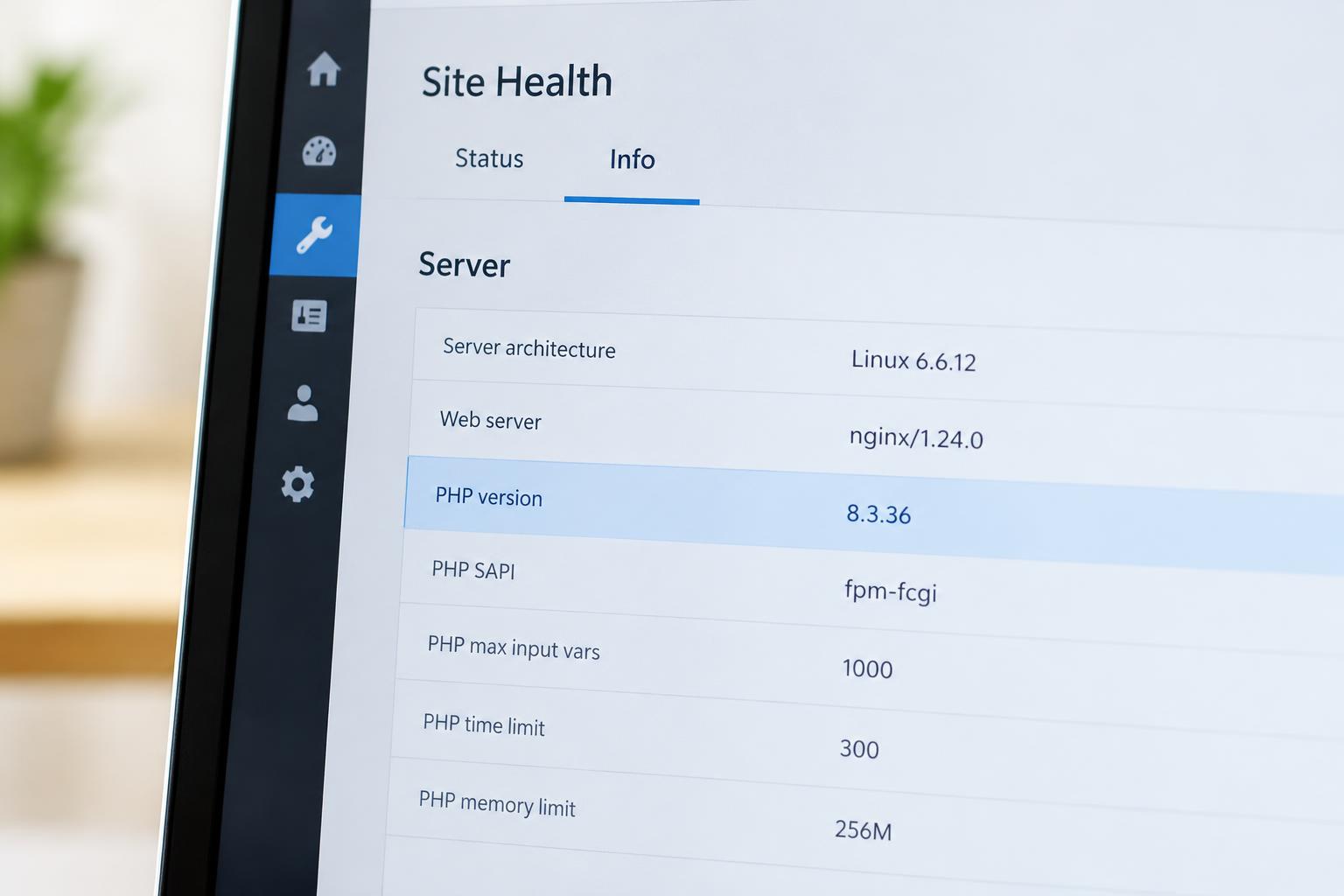
Build a small inventory before changing anything. In the WordPress dashboard, note the core version, active theme and installed plugins. Check Tools → Site Health → Info for server information, including the PHP version reported by the site. Your hosting control panel may also show the configured version; if the two do not agree, ask the host which environment is serving the live site.
Include inactive plugins and themes in the inventory, while concentrating testing on active components and any code that still runs outside the ordinary plugin list. Note custom themes, snippets, integrations, must-use plugins and host-provided extensions. A developer may need to identify dependencies that are not obvious from the dashboard.
Check core separately from extensions
Compare your installed WordPress release with its own published server compatibility information and with the host’s intended PHP version. For example, the WordPress Hosting Team publishes the WordPress core PHP compatibility matrix; that release-specific page is not a substitute for checking the requirements of a different installed release.
A minimum requirement is a floor, not proof that your complete website will work on every newer PHP version. Core, plugins, themes and custom code have their own compatibility considerations. If core needs an update, plan and test it as a separate change where practical, so you can tell which change introduced a problem.
Review plugins, themes and custom code
For each important component, check the developer’s release notes, documentation or support information for the target PHP version. Pay particular attention to payment, shipping, membership, form and integration plugins, as well as the active theme and its add-ons. If the publisher does not state compatibility, treat it as unknown—not automatically incompatible, and not automatically safe.
Look at whether updates are available and whether the site has the access or licence needed to obtain them. Ask the developer or publisher about components with unclear support. For custom code, ask whoever maintains it to review and test against the target version. Automated compatibility tools can flag items for investigation, but their results are not a substitute for a working test of the site.
Keep a simple record: component, current version, target-version status, owner and next action. A neglected extension with no clear maintainer may require an update, replacement or custom fix. Avoid removing it on the live site just because its compatibility is uncertain; first establish what business function and data it controls.
Make a backup you can actually use
A backup is useful only if the right people can access and restore it when needed. Before making updates or changing PHP, confirm that you have a recent copy of both the WordPress database and the site files. The database can contain content, settings and transactional records; files include the WordPress installation, plugins, themes and uploads.
WordPress documentation explains that a database backup can be restored if something goes wrong. That database copy is only one part of a website recovery plan: confirm separately that the required files and any relevant host configuration are covered.
Check when the backup was completed, where it is stored, how long it is retained and who can initiate a restore. If your provider makes automatic backups, confirm that the specific site is included and that an on-demand backup can be taken close to the change. A notification that a backup ran is not the same as knowing you can recover the site from it.
Where possible, perform a restore to an isolated environment before the upgrade. WordPress backup restore testing helps establish whether the copy and process work, rather than relying on a successful backup status alone. Protect the restored copy with appropriate access controls because it may contain customer or business information.
For an active WooCommerce store, restoration needs extra care. Replacing the live database with an older copy can overwrite orders, customer changes or other activity received after the backup. Agree in advance on how to identify and handle that gap; do not assume a full restore is the best first response to every PHP-related issue.
Test the target PHP version before the deadline
A staging site is a separate copy used to test changes away from the live website. Its value depends on how closely it represents production: the same relevant plugin and theme versions, configuration, custom code and target PHP version make the results more meaningful.
Before testing, compare key functions on the current live environment with the staging copy. This gives you a baseline: if an issue is already present, the PHP change may not be its cause. Then switch staging to the host’s target version and repeat the same actions. Record the result, the time, the page or action involved, and any error message without publishing sensitive details.
For a service business, a useful test might follow a visitor from a landing page through a contact form to the actual inbox or lead-management system. A success message alone is not enough; check that the submission arrives with the expected fields and that the team can respond. Use a clearly identified test entry and remove it from downstream systems where appropriate.
For a WooCommerce store, follow a representative customer journey: browse a product, add it to the cart, calculate shipping and taxes where relevant, and complete a test checkout using a provider-approved sandbox or other safe method. Verify the order in the administration area and check expected notifications. Avoid real charges, customer messages or fulfilment actions during testing.
Also check administrator and customer logins, password reset, important page layouts, search, downloads and the site editor where those functions matter. If staging sends email or connects to external systems, coordinate safe test settings first. Some integrations behave differently in staging, so document what could not be tested there and how it will be verified on production.
Ask a technical owner to review relevant PHP and application logs for the test window. A warning is a clue to investigate, not by itself proof of a customer-facing failure or of a specific cause. Compare the timing and the affected action, then involve the appropriate developer, plugin publisher or host before making changes. Avoid displaying detailed errors publicly.
What happens if the upgrade causes a problem?
Decide the response before the upgrade window, not after the site fails. Ask the host whether the previous PHP version can be selected temporarily after the deadline, who can make that change and for how long it will remain available. Do not assume that a rollback is offered or that an older version can remain in place indefinitely.
A PHP rollback changes the server environment back to an earlier PHP version. A site restore replaces some or all site data and files with a backup. They address different things: rolling PHP back may help isolate or temporarily reverse a compatibility problem without replacing recent orders, while restoring a backup may be necessary in other circumstances. Neither is guaranteed to fix every failure.
Confirm who can investigate application issues versus server issues. A host may manage the PHP environment, while your WordPress provider or developer handles plugin, theme or custom-code changes; the exact division varies. Ask what information each team needs, what support is available during the scheduled window and how to reach the account owner if approval is required.
If a critical feature fails in staging, avoid treating the deadline as permission to ignore it. Record the affected function, contact the relevant provider and discuss an extension, temporary mitigation or remediation plan with the host. Whether a deadline can be moved is the host’s decision. If staging is unavailable, ask for a controlled alternative and an agreed live recovery procedure rather than making an unplanned switch.
At WPAssist, we recommend treating recovery ownership as part of the preparation. A backup, a host control panel and a support contact are most useful when someone knows which option to use, who can authorize it and how recent business activity will be protected.
A practical sequence for upgrade day
Choose a window when the people responsible for the site and its critical workflows can be available. If the host controls the timing, work around its schedule and confirm how you will know when the change is complete. Keep the plan short enough that the person carrying it out can use it under pressure:
- Confirm the target version, timing, responsible owner and host support route.
- Resolve or document compatibility questions and complete staging tests.
- Take and verify a fresh backup; confirm access to the restore process.
- Agree on the rollback decision, including who can authorize it and whether the host permits it.
- After the live change, test the highest-value workflows and review relevant errors.
- Record outstanding issues, the owner of each fix and the time for a follow-up check.
Communicate the window to staff who rely on the site. If content, orders or enquiries continue during the change, make sure the recovery plan accounts for that activity. A brief pause in publishing may simplify coordination, but do not stop taking orders or disable features without an explicit business decision.
After the host confirms the upgrade, check the reported live PHP version and repeat the critical tests. A homepage that loads is a starting point, not a sign-off. Verify the actual form delivery, account access or order outcome that matters to your business, and check again after any follow-up fix.
If an issue appears, capture the symptoms and timing before changing several things at once. A recent PHP upgrade is relevant context, but it is not proof of the cause. Use the agreed support route, avoid exposing sensitive logs, and decide with the responsible team whether to fix forward, request a PHP rollback if available, or use another recovery option.
Conclusion
A host-mandated PHP upgrade is manageable when the deadline becomes a coordinated test and recovery plan. Know the target version, review the full WordPress stack, test realistic workflows and verify both the backup and the people who can act on it. Leave enough time to resolve unknowns before the host makes the change.
If your team needs an ongoing partner for WordPress updates and maintenance, explore WPAssist’s managed WordPress updates and discuss how upgrade preparation and responsibilities would fit your site.

Join Our Newsletter
Stay up to date on the latest WordPress tips and news