Why One-Click WordPress Database Cleanup Can Remove Data Your Business Still Needs
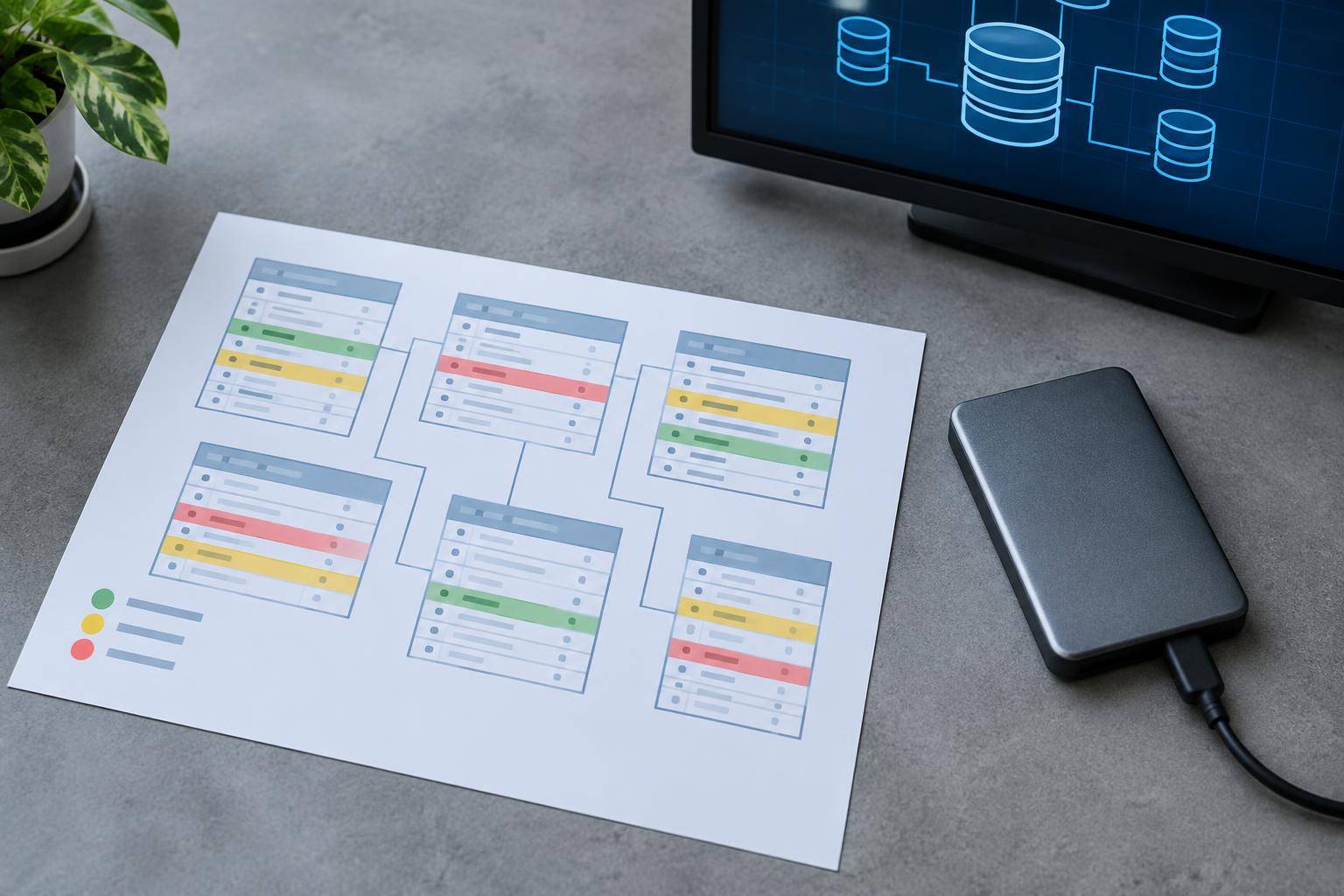
A WordPress database can grow quietly for years. Revisions accumulate, expired transients remain behind, old plugin data lingers after a feature is retired, and tables connected to forms, ecommerce, reporting, or automation become harder to recognize. That growth can make a one-click cleanup tool look like an easy maintenance win.
The risk is that a database is not just a performance container. It may hold customer inquiries, order-related records, content history, settings, queues, and plugin-specific operational data. A cleanup setting that labels something “orphaned,” “expired,” or “unused” is making a technical judgment; it is not confirming that the data has no business value. For Canadian businesses that depend on their websites for leads or sales, safe WordPress database maintenance starts with identifying what the data does before deciding whether it should go.
Quick Answer
One-click WordPress database cleanup can remove data your business still needs because plugins and workflows often store records outside the familiar posts and pages tables. Before deleting anything, identify table ownership and retention needs, create a verified recovery point, test the proposed cleanup in a controlled environment, and then check the business functions that rely on the affected data.
Key Takeaways
- Database size is not proof that all older records are safe to delete.
- Plugin-specific tables may contain leads, orders, settings, logs, or queued work.
- A backup is only useful when you can restore the required data reliably.
- Test cleanup on staging first and use small, reversible batches.
- Verify forms, checkout, scheduled work, and reporting after maintenance.
Why database cleanup is more than deleting clutter
Most cleanup tools group very different records into a reassuring list: post revisions, trashed comments, transient options, orphaned metadata, tables from inactive plugins, and overhead. Some categories can be sensible candidates for review. The problem begins when a broad label is treated as a business decision.
For example, a record can be old without being disposable. A contact form plugin may retain entries for a sales team that reviews leads weekly. A WooCommerce extension may keep records needed to reconcile a recent order. A marketing or analytics plugin may preserve historical information that is useful for reporting, troubleshooting, or consent-related processes. The database does not know your organization’s retention rules, and a generic cleanup routine does not know which plugin data your staff still uses.
Database maintenance is the controlled review of stored website data for safety, usefulness, and performance. Database cleanup is the deletion or reduction of selected records. Those are related tasks, but they are not interchangeable. Good maintenance begins with an inventory and a recovery plan; deletion happens only after the scope is understood.
There is also an important distinction between database cleanup and security remediation. Removing malware or suspicious code can require urgent, specialized action, while routine database housekeeping is usually planned maintenance. If your concern is a compromise rather than bloat, the decision process is different; malware cleanup and WordPress hardening address security risks, not ordinary record retention.
At WPAssist, we treat a large database as a reason to investigate, not a reason to press delete. Table size can be a useful warning sign, but it does not establish which table is safe to reduce or which plugin owns it.
What data can a one-click tool affect?
WordPress core stores common content and settings in standard tables, but an active website often contains much more. Forms, ecommerce extensions, membership tools, security plugins, page builders, booking systems, and analytics integrations may each store their own information. Some use the standard WordPress tables; others add separate tables with names based on the plugin or developer.
WordPress documentation confirms that plugins can create custom plugin tables to store their data. That means a table with an unfamiliar prefix should not automatically be considered leftover clutter. It may belong to an active function, or it may be an inactive plugin’s retained records that the business has deliberately kept.
Common categories that need a retention decision
Form entries and lead records: Some form tools email submissions only; others save the inquiry, attachments, status, and metadata in the database. Deleting entries may remove a sales follow-up trail or leave no way to recover a message if delivery failed.
Ecommerce information: WooCommerce and its extensions can store order-related information, downloadable-product access details, subscriptions, payment-related references, fulfilment notes, and reports. Do not assume that a plugin’s log, queue, or custom table is separate from an order workflow simply because it is not one of the standard WooCommerce tables.
Revisions and editorial history: Revisions can consume space on content-heavy sites, but they are also the practical undo history for pages and posts. A business with frequent campaigns or several editors may value a deeper revision history than a brochure site with rarely changed content.
Scheduled and queued work: WordPress uses WP-Cron for scheduled events. WooCommerce and other extensions may also use Action Scheduler for background work. These are not the same system, and both deserve care during maintenance. If WooCommerce or Action Scheduler is in scope, review pending and failed work in WooCommerce → Status → Scheduled Actions before and after any cleanup that may affect queues.
Plugin settings, logs, and analytics: Security events, error logs, optimization records, A/B testing data, cache-related options, and analytics records can all have different value and retention periods. A log with no current use may be removable after review; a log needed to investigate a recurring checkout issue is not.
Consider a small Canadian retailer that runs a WooCommerce store and uses a form plugin for wholesale requests. A database utility flags several large tables as “unused” after a plugin was deactivated. Before removal, the team needs to know whether the old plugin stored historic wholesale submissions or whether the retailer exported those records elsewhere. The table name alone is not enough evidence.
How do you find what is actually consuming database space?
Start with evidence, not the cleanup tool’s delete screen. Use your hosting database manager, a reputable database inspection feature, or qualified support to list tables by size. Record the table name, size, row count, likely owner, and whether the related plugin is active. Also note when the table last changed if that information is available.
A large table is a question to answer, not proof of waste. Compare it with the site’s features. A large table associated with an active ecommerce extension, form system, or learning platform may be expected. A table from a retired plugin may be a cleanup candidate, but only after you confirm the plugin is truly gone, no replacement still reads the data, and the records are not being retained for operational reasons.
Build a simple ownership map
You do not need to understand every database field to make a safer decision. Create a short record for each significant table or cleanup category:
- What is it? Note the table or record category and its approximate size.
- Who owns it? Identify WordPress core, WooCommerce, an active plugin, a former plugin, or an unknown source.
- What business function uses it? Link it to leads, orders, publishing, reports, automation, security, or another specific workflow.
- How long must it be kept? Confirm the answer with the people responsible for sales, operations, finance, marketing, or compliance.
- Can it be rebuilt or exported? Decide whether a safe export exists and whether deletion can be reversed from a backup.
Plugin documentation, developer support, and a staging copy can help resolve unknown ownership. Avoid guessing from a table prefix alone. The same plugin may store settings in one location, operational records in another, and temporary data somewhere else.
For a busy store, start with the largest tables and the workflows that would cause the greatest disruption if they failed. For a content site, revisions and expired transients may be a reasonable first review, but only after you confirm the cleanup tool’s definition and retention behaviour. This is why a WordPress plugin audit is often a better first step than a broad deletion pass when table ownership is unclear.
Set retention rules before you remove anything
Retention is a business policy translated into a technical action. Ask the people who use the website data how long they need it, where the authoritative copy lives, and what would happen if a record disappeared. A marketing manager may need form entries for campaign attribution. An operations lead may rely on order notes. An editor may need revisions to restore a damaged landing page.
Choose rules by data type rather than choosing one arbitrary age limit for the entire database. Temporary cache entries may have a short lifecycle. Error logs might be kept briefly unless there is an active investigation. Customer inquiries, orders, and financial records require a separate decision based on your actual operating and legal obligations. If those obligations are unclear, obtain appropriate business, accounting, privacy, or legal guidance before applying a purge rule.
Be especially careful with “orphaned” data. In a technical sense, an orphaned metadata row may no longer point to a parent record. In business terms, it may signal a plugin migration, an incomplete import, a deleted item that needs recovery, or an extension that stores relationships in a non-obvious way. Investigate a sample before deleting a whole category.
WPAssist commonly begins by asking what the site must still do after maintenance. That changes the conversation from “How much space can we reclaim?” to “Which records and workflows must remain available?” The second question produces safer decisions and usually makes cleanup scope clearer.
Create a recovery point you can actually use
A backup before cleanup is essential, but a backup file is not the same as a workable recovery plan. For database maintenance, capture a fresh database backup immediately before the change and make sure it is stored separately from the production site. If uploads, plugin files, or configuration changes may be involved, include the relevant files as well.
The recovery point should match the change. If you are deleting database records, you need a database backup that can be restored to the right environment. If you are uninstalling a plugin or changing code at the same time, a full-site backup may be necessary. Write down the timestamp, the scope of the planned cleanup, and how you will roll back if validation fails.
Backup recovery guidance broadly recommends non-production restore tests so teams can validate backup integrity and recovery procedures without affecting the live service. Applied to WordPress, that means restoring a recent copy to a staging environment and confirming that the database imports cleanly, the site can connect to it, and essential data is present.
A recoverable backup is one you can locate, restore, and validate within the time your business can tolerate. If you have never restored it, treat it as an untested safeguard rather than a guarantee.
Cloud storage can improve resilience by keeping recovery copies away from the production server, but location does not replace verification. A managed approach to cloud backups should still include clear retention, restore access, and periodic checks that the recovery process works for your site.
How should you test database cleanup safely?
The safest path is to reproduce the site on staging, run the planned cleanup there first, and inspect the result before touching production. Staging does not eliminate risk, but it lets you discover obvious dependency problems without deleting live records or interrupting customer activity.
Use a narrow, reversible sequence
Do not combine several changes in one pass. If you remove old transients, delete revisions, optimize tables, uninstall a plugin, and change caching settings together, you will have trouble identifying the cause if something fails. Work in small batches with a restore point before each material step.
Begin with the least ambiguous categories. For example, you might test a limited removal of clearly expired temporary entries on staging, compare database size and site behaviour, then move to a separate review of revisions or former-plugin tables. Keep a change log that records the category, tool setting, number of affected records, date, and outcome.
For WooCommerce sites, avoid running destructive maintenance during a high-sales period. Check for orders being placed, subscription renewals, product imports, fulfilment integrations, and scheduled background activity. A maintenance window is useful not because it makes every cleanup safe, but because it reduces the impact if a rollback or additional investigation is needed.
Also separate database cleanup from automatic update routines. Managed WordPress updates can be planned and validated independently; adding an irreversible database purge at the same time expands the number of variables unnecessarily.
What should you verify after cleanup?
A homepage that loads is not enough. Uptime confirms that a server can be reached, but it does not prove that a customer can submit a form, complete checkout, receive the right confirmation, or trigger an automation. Reliability guidance describes this uptime gap: availability includes the expected, non-error response, not just reachability.
After each cleanup batch, validate the functions connected to the records you reviewed. Do this from the visitor’s perspective and, where appropriate, from the administrator’s perspective too. Compare before-and-after behaviour and confirm that new activity is being stored correctly.
A compact post-cleanup check
- Submit a test form and confirm receipt, storage, notifications, and any CRM handoff.
- On a WooCommerce store, add a product to the cart and complete a controlled test purchase where your payment setup permits.
- Check recent orders, customer details, product information, and administrative reports for expected records.
- Review WP-Cron activity and, when applicable, WooCommerce scheduled actions for new failures or stalled queues.
- Confirm analytics or marketing tags are recording the events your team relies on.
- Review error logs and monitoring alerts for new warnings after the change.
As a practical example, imagine a service business whose booking form appears to work after cleanup: the thank-you message displays, so the team assumes success. The meaningful test is whether the submission arrived in the inbox, appears in the form-entry area if one is used, and reaches the team’s lead process. A visible confirmation page alone is not proof that the workflow succeeded.
If you find missing data, failed background tasks, new errors, or unexpected behaviour, stop further cleanup and restore or investigate before making additional changes. Do not keep deleting in the hope that a later optimization will fix an earlier failure.
Fix this first before using a one-click cleanup tool
Use this short sequence when database growth is becoming a concern:
- Identify the largest tables and the active plugins or workflows associated with them.
- Confirm which data must be retained and who can make that decision.
- Create a fresh, separate backup and confirm the rollback process.
- Test one narrow cleanup category on staging before production.
- Run the production change in a small batch during an appropriate window.
- Verify customer-facing and administrative workflows immediately afterward.
If a tool cannot show exactly what it plans to delete, cannot exclude a category, or offers no practical way to work in small batches, it is a poor fit for a site with important operational data. Convenience is valuable only when the scope is visible and the outcome can be checked.
Conclusion
Database growth deserves attention, but the right response is careful maintenance rather than automatic deletion. The safest process is straightforward: identify ownership, establish retention requirements, create a proven recovery point, test a narrow change, and validate the workflows your business depends on. That approach may take longer than a single click, but it is far less costly than discovering that a useful customer or operational record has disappeared.
For businesses that want this work handled as part of an ongoing, documented process, compare WordPress maintenance pricing and support plans and look for a plan that treats backups, updates, monitoring, and change validation as connected responsibilities rather than isolated tasks.

Join Our Newsletter
Stay up to date on the latest WordPress tips and news