7 WordPress Checks to Make Before a Seasonal Traffic Spike
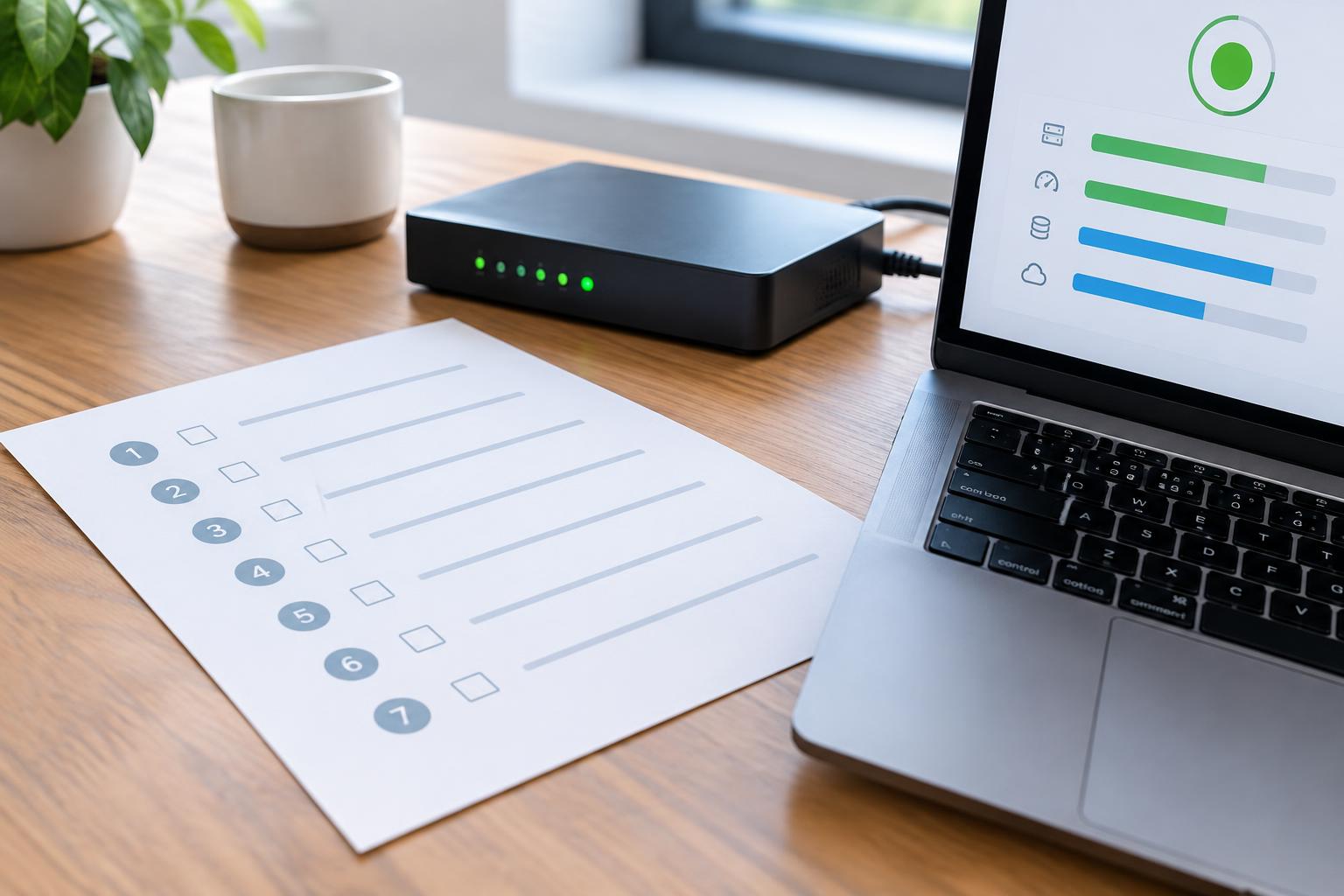
A seasonal sale, holiday promotion, product launch, media mention, or successful email campaign can bring welcome attention to your business. It can also expose weaknesses that remain invisible during an ordinary week: a checkout that fails only after a coupon is applied, a form notification that never arrives, a server that slows under concurrent visits, or a backup that cannot be restored quickly enough to matter.
The goal is not to make a WordPress site “traffic-proof.” No responsible provider can promise that. The practical goal is to reduce preventable failures, identify limits before customers find them, and make sure someone knows what to do if a critical path breaks. For Canadian businesses relying on leads or online revenue, that preparation is a core part of dependable WordPress website maintenance.
Start early enough to make changes calmly. A readiness review a few weeks before a campaign gives you time to test, correct, observe, and retest rather than making risky changes on the day demand arrives.
Quick Answer
Before a seasonal traffic spike, confirm that your hosting and caching can handle extra demand, test the exact path visitors must complete, verify recent recoverable backups, avoid unnecessary updates, enable meaningful monitoring, and assign a clear responder. These seven checks focus on the systems that protect leads, orders, and customer confidence when your WordPress site receives more attention than usual.
Key Takeaways
- Test the visitor journey that produces a lead, booking, or order—not only the homepage.
- Confirm hosting capacity and caching behaviour before campaign traffic begins.
- Verify that backups are recent, accessible, and suitable for recovery.
- Freeze non-essential changes close to a high-stakes promotion.
- Make monitoring alerts and response ownership clear before anything goes wrong.
Check #1: Confirm hosting capacity and caching behaviour
More visitors do not automatically cause a site failure, but higher demand raises the importance of how your hosting environment, database, theme, plugins, and cache work together. Hosting capacity and caching configuration are relevant factors in serving increased traffic; Google’s guidance on hosting and caching similarly connects scaling for higher traffic with reducing unnecessary load on servers.
Ask your host or technical partner what is known about your current environment. Is the plan shared, managed, or provisioned with resources that can accommodate a short-term surge? Are there limits on CPU, memory, processes, database connections, or bandwidth that could matter? You do not need to become a hosting specialist, but you should know who can answer these questions and how quickly they can respond.
Caching deserves the same attention. A cache can make public pages much faster by serving saved versions instead of rebuilding every page request. However, pages that are personal or dynamic—such as carts, checkout screens, account areas, and form-confirmation pages—usually need different handling. A configuration that improves a blog post may create trouble if it incorrectly caches a shopper’s cart or shows outdated stock information.
What to look for
Open an incognito browser window and move between a public landing page, a product page, the cart, and checkout. If you operate WooCommerce, add an item, adjust the quantity, apply a campaign code, and confirm that totals change correctly. The point is not simply to see a fast page. It is to see whether the right pages are fast while customer-specific actions remain accurate.
At WPAssist, we treat infrastructure readiness as a business question first: what will a visitor need to accomplish, and which technical dependencies must remain available for that to happen? That framing keeps attention on revenue-critical paths rather than a speed score alone.
Check #2: Test the exact lead, booking, or checkout path
A page can load perfectly while the action that matters fails. A form might display but not send a notification. A booking request may be accepted in the browser but fail at a connected calendar or email step. An online store may let a shopper add an item but fail when shipping, tax, payment, or confirmation email comes into play.
Test critical user journeys from beginning to end. For a service business, that might mean arriving from the campaign landing page, submitting the primary form, seeing the thank-you message, and confirming that the right person receives the notification. For an ecommerce store, it means completing a genuine low-value test order through the same payment, shipping, and confirmation route a customer will use.
WooCommerce’s developer documentation lists detailed core checkout flows, including cart, shipping, tax, checkout, order confirmation, and customer email behaviour. That reference is specific to WooCommerce, but the underlying principle transfers to any WordPress site: test the complete action, not just the page that begins it.
A practical test scenario
Imagine a retailer promoting a limited weekend bundle. A staff member opens the campaign link on a desktop browser, adds the bundle to the cart, enters a Canadian postal code, applies the advertised coupon, pays using a test-friendly method approved by the payment provider, and checks both the order confirmation screen and the order email. Then they repeat the most important parts on a mobile device. This can expose a shipping rule, coupon conflict, payment setting, or email problem before a customer does.
Document the result in plain language: what was tested, when, who tested it, and whether the expected email or order appeared. A pass/fail record is more useful than relying on a vague recollection that someone “looked at it.”
Check #3: Verify that backups are recent and recoverable
A backup is not the same as a recovery plan. A backup can exist and still be too old, incomplete, inaccessible, or difficult to restore under pressure. Before a traffic spike, confirm when the most recent backup ran, what it includes, where it is stored, and who can access it if your normal WordPress login is unavailable.
For most business sites, the key elements are the WordPress files and the database. For ecommerce sites, timing matters even more because orders, customer changes, inventory information, and content can change throughout the day. The right backup frequency depends on how often meaningful data changes, not on a generic rule such as “weekly is enough.”
National Cyber Security Centre guidance emphasizes having an offline backup that is recent enough to be useful and ensuring that incident-response arrangements remain available during a disruption. Its advice on recent backups and response planning is directed at heightened cyber risk, but the recovery principle applies to campaign readiness as well: a backup only protects you when it can support a timely, controlled recovery.
Ask a specific question: “If this site became unusable tomorrow morning, what would we restore, from where, and who would carry out the work?” If the answer is unclear, resolve that before investing more in promotion.
WPAssist commonly sees business owners discover too late that several people assumed someone else was responsible for backups. A written owner and a quick verification are much stronger safeguards than an assumption based on a hosting plan description.
Check #4: Freeze non-essential updates and plan safe changes
Updates are essential to the health and security of WordPress sites, but their timing matters. Installing a new plugin, changing a payment setting, replacing a theme component, or applying multiple updates immediately before a seasonal campaign can introduce conflicts when there is little time to diagnose them.
A pre-campaign change freeze does not mean ignoring urgent security updates or leaving a known critical issue unresolved. It means distinguishing necessary maintenance from optional improvement. If a change is not required for the campaign, schedule it after the high-traffic period whenever practical.
For changes that must happen, use a controlled workflow: take a current backup, note the purpose of the change, make it in a suitable testing environment when available, and verify the affected customer journey afterward. The details behind managed WordPress updates matter most when several plugins, a theme, and a payment or marketing integration share the same path.
Keep a short change log during the campaign window. Record plugin updates, configuration edits, new tracking tags, coupon rules, payment changes, and hosting adjustments. If something fails, that list narrows the first places to investigate. It does not prove causation, but it prevents wasted time asking what changed.
Controlled change timing is a reliability practice: make important changes when you have the time, access, and people needed to test and reverse them. During a major promotion, stability is usually more valuable than a last-minute feature.
Check #5: Set up uptime monitoring that reaches a real person
Uptime monitoring checks whether a site or selected page can be reached from outside your hosting environment. It is valuable because a website can be unavailable even when nobody on your team happens to notice. But an alert alone does not restore a site, validate a checkout, or reassure a customer.
Before the campaign, decide what should be monitored. The homepage is a useful baseline, but it may not reflect the health of the page visitors need most. Consider a campaign landing page, a key product page, or another public URL that represents the path you are promoting. For a store, remember that a publicly available product page is not proof that payment processing works; checkout testing remains a separate check.
Make sure alerts go to an inbox, channel, or phone tree that someone will genuinely see outside regular working hours if the campaign runs evenings or weekends. Then test the alert route if possible. An alert sent to an unmonitored legacy email address is only a false sense of coverage.
Effective uptime monitoring gives a team earlier awareness of public availability problems. It should be paired with a response plan that answers who investigates, how the technical contact is reached, and when the business pauses paid traffic or changes customer messaging.
Check #6: Assign response ownership before the campaign starts
When a site problem occurs during a promotion, delays often come from uncertainty rather than the issue itself. The marketer sees fewer conversions, the owner sees an alert, the developer is unavailable, the host asks for account verification, and no one is sure who can authorize a rollback or temporary campaign pause.
Create a compact incident card before traffic increases. It can be a shared document, not a complicated operations manual. Include the hosting provider, domain/DNS contact, payment provider contact if applicable, WordPress administrator access process, backup location, monitoring recipient, and the person with authority to make a business decision.
Fix this first when something looks wrong
- Confirm whether visitors can reach the affected page from an external browser.
- Check whether the problem affects all visitors or only a specific path such as checkout or a form.
- Pause new site changes until the impact is understood.
- Review the most recent backup and the latest change log entry.
- Notify the assigned technical responder and decide whether campaign traffic should be paused or redirected.
A warning sign is not proof of the cause. For example, a dip in conversions may reflect an ad-targeting change, a broken form, an out-of-stock product, a payment issue, or ordinary demand variation. Start by checking the most business-critical path, then use evidence to narrow the diagnosis rather than immediately changing several systems at once.
Clear ownership also protects staff from improvising under pressure. A person does not need to know how to repair every WordPress issue; they need to know whom to alert, what evidence to collect, and which actions they are authorized to take.
Check #7: Review campaign content, third-party dependencies, and the final go-live window
The final check brings the earlier work together. Review the campaign pages, offer details, links, analytics tags, forms, checkout settings, and external services that have to work at the same time. A seasonal campaign may rely on an email provider, payment gateway, shipping integration, inventory system, CDN, analytics script, popup tool, booking platform, or ad destination. Any one of those can affect the visitor experience.
Look for simple but expensive mistakes: an expired coupon, a promotional link that points to a draft or outdated URL, a form routed to a former employee, a product with no stock, a campaign page excluded from the cache when it should be cached, or a tracking script that interferes with consent or page loading. Check the public version in an incognito window so your logged-in administrator session does not hide visitor-facing behaviour.
Set a go-live window with a final reviewer. Ideally, that person checks the campaign from the perspective of a new visitor and confirms that the intended call to action works. If you are launching paid ads or a sale at a specific time, avoid deploying unrelated code, plugins, design changes, or major content edits in the same hour.
This is also the point to clarify thresholds. What would make you pause ads? What would trigger a message to customers? Who decides whether a temporary workaround is acceptable? Pre-deciding these questions keeps a minor issue from becoming a disorganized one.
Conclusion
A traffic spike is an opportunity, but it also concentrates risk into a short period. The seven checks above help you focus on the essentials: capacity and caching, the real customer journey, usable backups, disciplined updates, visible monitoring, clear response ownership, and a careful final review.
For businesses that would rather not coordinate these checks alone, WPAssist can help build ongoing care around updates, backups, monitoring, performance, and support. Compare WordPress maintenance pricing and support plans before your next seasonal campaign puts extra pressure on your site.

Join Our Newsletter
Stay up to date on the latest WordPress tips and news