The Extra HTML is similar in concept to the Whitelisted CSS selectors. But whereas CSS selectors are needed for styling elements that come into view as your scroll a page, the Extra HTML is needed for elements that only become visible when someone clicks a link or button. Examples of these elements include a popup or video overlay.
The easiest way to figure this out is to use your browsers Developer Tools to inspect the HTML code on the page in question.
Let’s use a simple example of a video popup. In the YouTube video below, we have a page with an image. Clicking the image opens up a popup with a video embed.
You can see this page here for reference:
Step by step instructions:
- Click on the button to trigger the popup overlay.
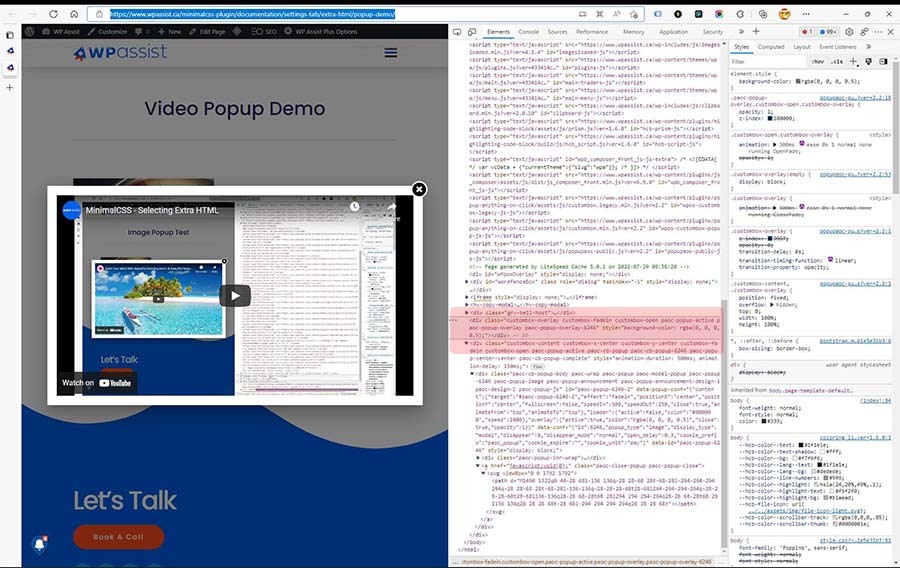
- Right-click anywhere on the popup and select Inspect. If this is a YouTube video, you might have to click close to the edge or the “close” button to see the dev tools option.
- This will open a new window showing the website HTML code.
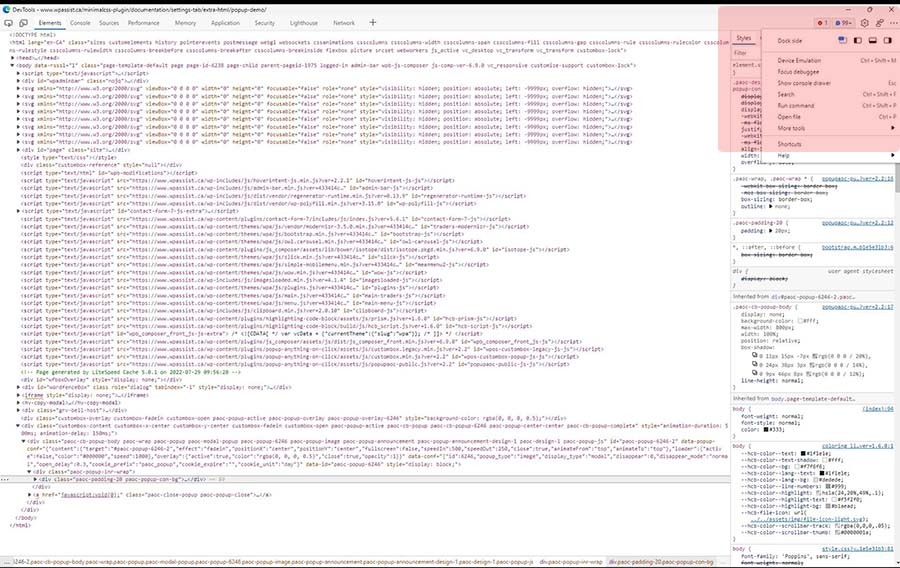
- This is easier if you have multiple screens, but you can also dock the DevTools window to the side of the website tab. To do this, click on the 3 dots in the top-right of the DevTools window and select one of the “Dock side” options.
- In the DevTools window an area of the code will be highlighted. This corresponds to the area in your webpage where you right-clicked.
- Now back on the webpage, click to close the popup overlay. Then click to open it again.
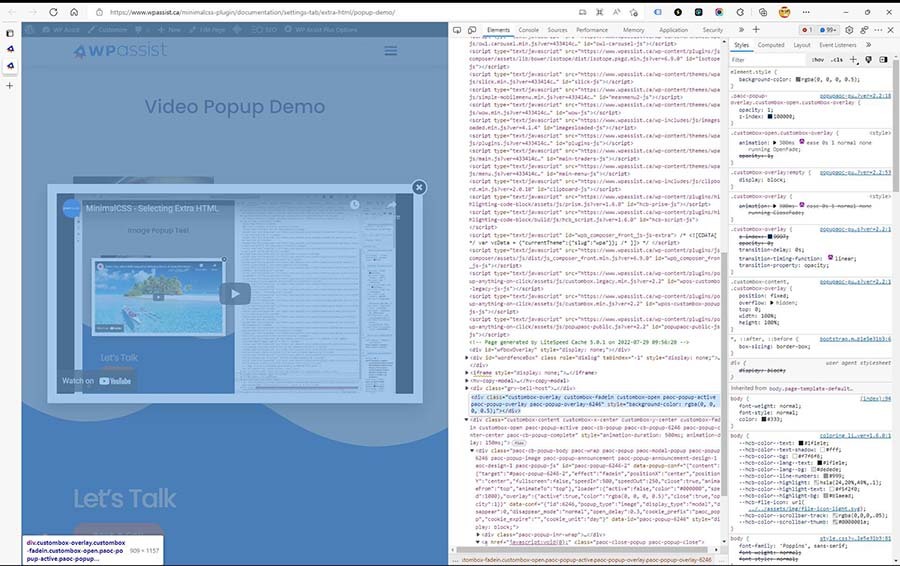
- You will notice in the DevTools window, pieces of code appearing and disappearing. This is essentially the code that needs to be added to the Extra HTML textbox in the MinimalCSS plugin.
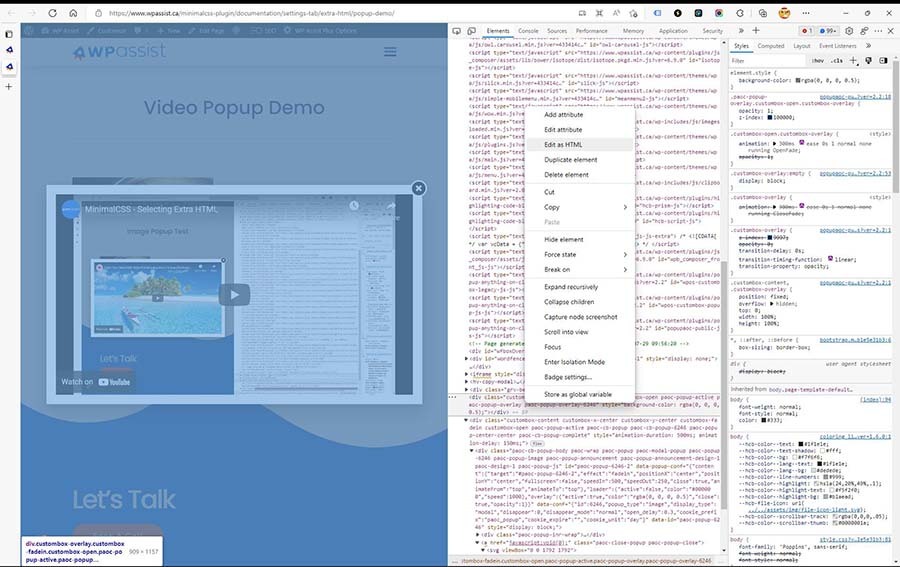
- Right-click the code area in the DevTools window and select “Edit as HTML”.
- Now copy the entire code and paste it into the MinimalCSS plugin.
- In many cases, there are more than one block of code to copy. In our example, the block of code that appears directly below the one in the previous step is also part of this popup overlay. Right-click it and select Edit as HTML.
- Once you are done, save the Extra HTML in MinimalCSS and you are ready to generate the unused CSS files.