
MinimalCSS helps optimize the loading of background images. For the technique below to work, you need to enable “Background Image Optimization” feature in the Optimization tab.
With this feature enabled, background images will not be loaded until they are in the viewport.
This feature works on 2 levels:
1) Any element (div, span, section, etc) which includes inline style specifying a background image will be automatically lazy loaded.
2) For background images specified in the CSS files themselves, the process is a little different and requires some tweaks to be done manually. See detailed instructions below.
Detailed reference for this technique can be found here: The Complete Guide to Lazy Loading Images | CSS-Tricks
TIP: This process described below is only required when the “background-image” property is part of the CSS file. For background images specified using inline elements, lazy loading of the image will be done automatically.
Here’s what you need to do:
1. Add the “mcss-lazy” class.
Essentially, for every element with a background image that is below the fold, you need to add a class that we will reference in the CSS code. The class must be named “mcss-lazy”.
Example:
< div id="portfolios" class="mcss-lazy" >< /div >If you are using a page builder, see examples below for some of the more common WP builders.
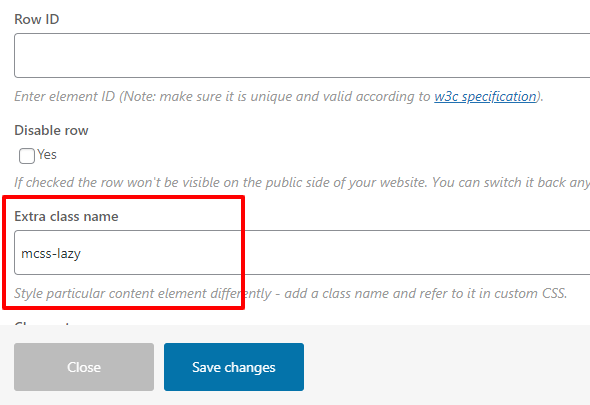
WPBakery
Click to edit a Row and then scroll down to “Extra class name” field.
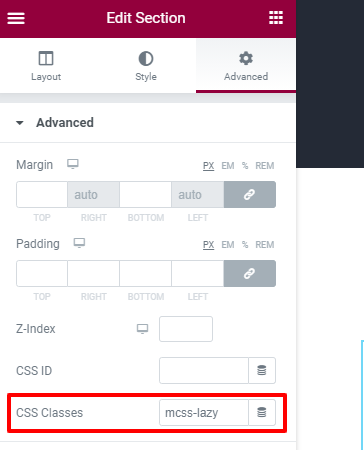
Elementor
Edit a section or column where the background image appears, and switch to the Advanced tab.
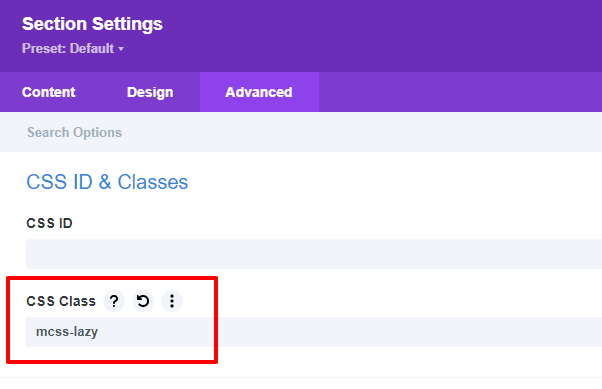
DIVI
Edit the section where the background appears and switch to the Advanced tab to enter the class name.
2. In your CSS file, add code similar to the following:
#portfolio-section.mcss-lazy, #testimonial-section.mcss-lazy {
    background-image: none;
    background-color: #F1F1FA;
}

#portfolio-section {
     background-image: url(/wp-content/uploads/2020/12/my-background-image.jpg);
}
Make sure to adjust the element ID and image URL to match those on your site.