How to Build a Safe Plugin Update Workflow for a Busy WordPress Site
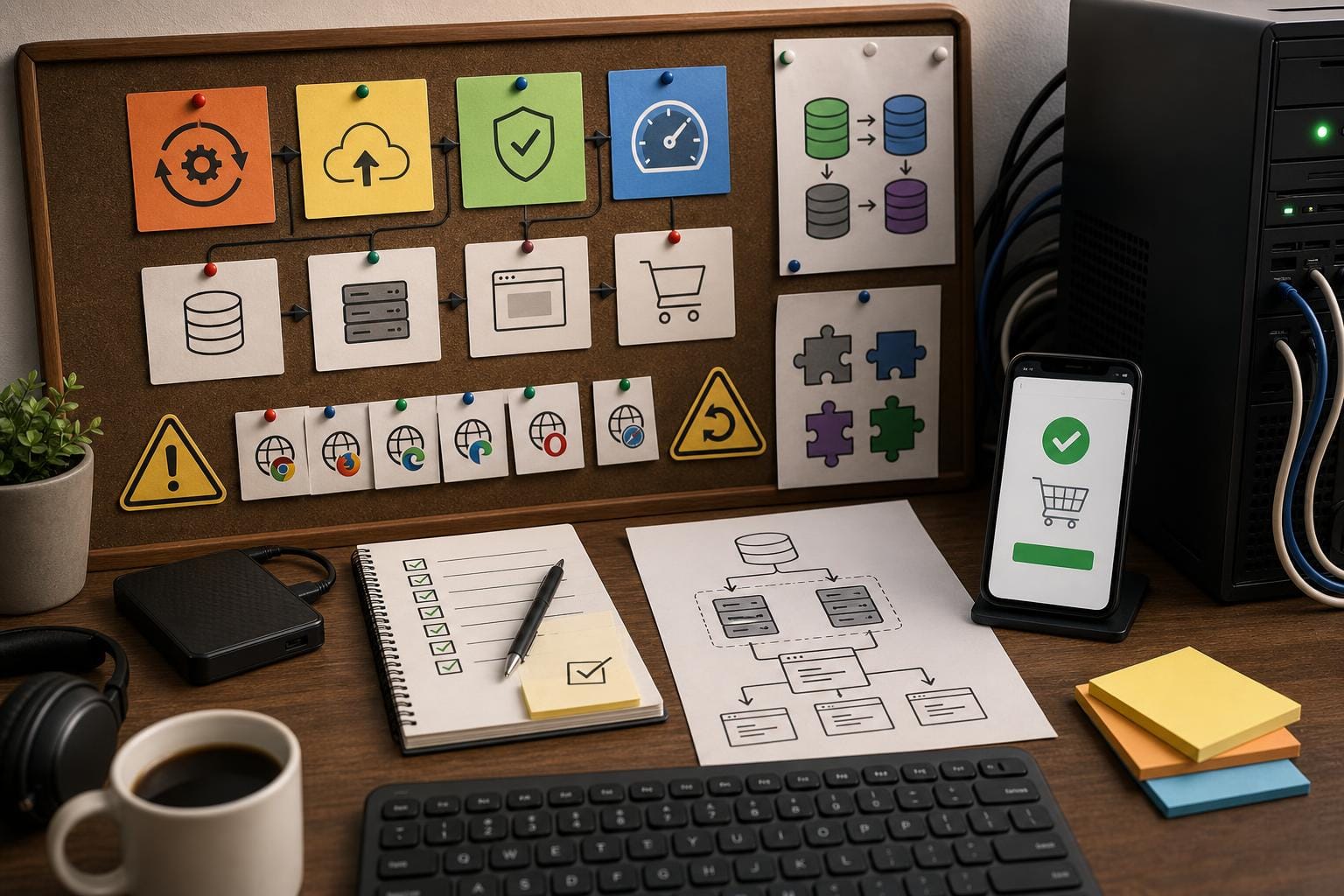
Plugin updates are one of those WordPress tasks that seem simple right up until something breaks. A button click can trigger a checkout error, knock out a contact form, scramble a layout, or slow down an important page. For a busy business website, the problem is not just technical inconvenience. It can mean missed leads, lost orders, support headaches, and unnecessary stress.
If your team is responsible for a WordPress site but does not have time to babysit every update, the answer is not to ignore updates or install them blindly. The safer approach is to build a repeatable workflow: prepare first, update in the right order, test the parts that matter most, and have a rollback plan ready if something goes wrong.
At WPAssist, we usually find that update problems are less about the update itself and more about the lack of process around it. A stable site can still become risky when updates are handled ad hoc, especially if several plugins, a page builder, custom code, and WooCommerce all depend on each other.
Key Takeaways
- Do not treat plugin updates as a one-click maintenance task on a live business site.
- Always confirm backups, review changelogs, and test updates on staging when the site matters to revenue or lead generation.
- Focus testing on critical functions such as forms, checkout, logins, and key landing pages.
- Use a simple risk framework to decide which updates can be handled in-house and which should be managed by experts.
- Have a rollback plan before you update, not after a problem appears.
Why a Plugin Update Workflow Matters
WordPress updates are essential for security, compatibility, and performance. But not all updates carry the same level of risk. A small fix to a simple plugin is very different from a major release affecting WooCommerce, payment gateways, SEO plugins, page builders, multilingual tools, or anything that changes database structure.
Busy teams often fall into one of two traps:
- They postpone updates for too long, creating security and compatibility issues.
- They run updates quickly on the live site without checking what changed.
Neither approach is reliable. A good workflow gives you a middle ground: keep the site current without treating your live website like a testing environment.
From our perspective, the goal is not to update everything as fast as possible. It is to keep the website secure and stable while reducing business risk. That difference matters, especially for organizations that rely on WordPress daily.
Start With a Simple Risk Classification
Before you update anything, sort plugins into three practical groups. This step helps you decide how careful you need to be.
Low-risk plugins
These usually have limited front-end impact and do not control revenue-critical functions. Examples might include a lightweight admin utility or a minor settings helper.
Medium-risk plugins
These may affect visible content or site functionality but are not directly tied to transactions. Think sliders, forms, SEO tools, caching tools, or page builder add-ons.
High-risk plugins
These deserve more caution because they can affect orders, payments, user access, multilingual content, memberships, or site structure. WooCommerce, payment gateways, shipping tools, booking systems, security plugins, backup tools, and major page builders often fall into this category.
If a plugin touches money, user data, login access, or core layout, assume it is high risk until proven otherwise.
Step 1: Confirm You Have a Real Backup
A backup only helps if it is recent, complete, and restorable. Many site owners assume their host has this covered, but the details matter. Before updates, confirm:
- The backup includes both files and database.
- The backup was created recently enough to be useful.
- You know how to restore it.
- The backup is stored somewhere dependable.
If your site changes daily, yesterday’s backup may already be out of date. For an active WooCommerce store, timing matters even more because orders, inventory, and customer activity can change hour by hour.
If you want a deeper look at backup considerations, especially storage and reliability, see This guide to WordPress backups.
One practical rule: never start updates unless you know what your restore path looks like. That can mean a host snapshot, a plugin restore point, or a full backup system tested in advance.
Step 2: Review the Changelog Before Clicking Update
Most plugin update mistakes happen because nobody checks what the update actually does. A changelog can tell you whether the release is a minor patch, a security fix, a compatibility update, or a major feature change.
Look for signals such as:
- Major version jumps, such as 4.x to 5.x
- Database changes or migration notes
- Compatibility updates for a new WordPress or PHP version
- Template, shortcode, CSS, or JavaScript changes
- Mentions of deprecated features
- Known issues or special upgrade instructions
If the notes are vague, or if the plugin has a history of introducing conflicts, slow down. In many cases, that is your sign to test on staging first rather than updating on the live site.
We often advise clients to pay extra attention when updates involve page builders, caching, translation, security, and e-commerce plugins. Those categories tend to have wider impact than a simple feature plugin.
Step 3: Use a Staging Site for Anything Important
A staging site is a private copy of your live website where you can test updates safely. For businesses that rely on lead forms, bookings, member access, or online sales, staging should be a normal part of WordPress website maintenance, not an optional extra.
On staging, you can:
- Update plugins without affecting visitors
- Check for layout or function issues
- Spot PHP warnings, plugin conflicts, or JavaScript errors
- Test checkout, forms, and user flows before going live
If your host provides one-click staging, use it. If not, build a manual process or get support setting one up. This is one of the clearest dividing lines between casual upkeep and a professional maintenance process.
For smaller brochure sites, you may not need staging for every low-risk plugin update. But if the plugin affects layout, forms, search, or anything customer-facing, staging is still the safer choice.
Step 4: Update in a Controlled Order
Updating everything at once makes it harder to identify the source of a problem. A better method is to work in sequence.
A practical order often looks like this:
- Take or verify your backup.
- Update one higher-risk plugin at a time on staging.
- Test critical functions after each major update or logical group of updates.
- Update lower-risk plugins after the important ones are confirmed stable.
- Repeat the same sequence on the live site during a scheduled maintenance window.
If your site has WooCommerce, custom integrations, or a complex builder setup, avoid bulk updating several major plugins together. It may be faster in the moment, but it is slower overall when troubleshooting starts.
Step 5: Test What Actually Matters to the Business
Do not stop at “the homepage loads.” That is not enough. Testing should follow the real purpose of the site.
For a brochure or lead-generation site
- Check the homepage and a few key service pages
- Submit the main contact form
- Test mobile navigation
- Open any popups, quote forms, or booking tools
- Review speed and visual layout on important landing pages
Example: A law firm updates a form plugin and the page still looks normal, but submissions quietly stop sending. Without a proper test submission, that issue can go unnoticed for days.
For a WooCommerce store
- Add products to cart
- Test product variations
- Apply a coupon if your store uses them
- Move through checkout
- Confirm shipping and tax behaviour
- Test payment gateway response
- Review transactional emails if possible
Example: A shipping plugin update may not break the storefront visually, but it can create incorrect rates at checkout. That kind of issue usually appears only when someone runs a real order test.
At WPAssist, we tend to focus first on revenue paths and conversion points: forms, checkout, login, search, and the pages most likely to affect leads or sales. That approach catches the problems that matter most before they become business issues.
Step 6: Watch for Common Conflict Patterns
Plugin conflicts are not always dramatic. Sometimes they show up as small behavioural changes that are easy to miss at first.
Common warning signs include:
- A layout shift on pages built with Elementor, Beaver Builder, Divi, or Gutenberg blocks
- Buttons that no longer respond
- Popups, menus, or tabs failing due to JavaScript errors
- Slow admin screens after security or backup plugin updates
- Caching or optimization tools serving stale files
- Broken scheduled tasks, email delivery, or webhook behaviour
One of the more frustrating patterns is when a plugin update is technically successful but leaves cached CSS or JavaScript behind. The site can appear broken even though the update itself was fine. In those cases, clear plugin cache, server cache, CDN cache, and browser cache before assuming the update failed.
If performance drops after updates, it is worth checking broader speed issues as well. Our article on Performance bottlenecks on WordPress sites can help you narrow down what changed.
Step 7: Schedule Updates Intentionally
The best time to update is not whenever WordPress shows a red notification bubble. Choose a maintenance window when your team can monitor the site and visitor activity is lower.
That might mean:
- Early morning before regular business hours
- Mid-week instead of peak sales periods
- A set monthly or biweekly maintenance slot
For many Canadian businesses, update timing should also reflect customer behaviour across time zones. If your store sells nationally, avoid making major changes at times when western customers are still active, even if your local office day is winding down.
Routine scheduling makes updates less stressful because they stop being surprise tasks. It also gives your team a chance to prepare a checklist instead of rushing.
Step 8: Know How You Will Roll Back
Rollback planning is where many update routines fall apart. People remember backups, but they do not always prepare the specific steps needed to reverse a plugin issue cleanly.
Your rollback options may include:
- Restoring a full-site backup
- Reverting a single plugin to a previous version
- Restoring a host snapshot
- Disabling the problematic plugin temporarily while troubleshooting
Be careful with full-site restores on active WooCommerce stores, membership sites, or booking websites. Restoring the entire database can overwrite recent orders, customer records, or submissions. In those cases, the safest response may be more surgical.
What to check first if something breaks after an update:
- Which plugin was updated most recently?
- Did the problem appear on staging too, or only on live?
- Is the issue front-end, admin-side, or checkout-specific?
- Does clearing caches change the result?
- Can the plugin be rolled back without affecting newer data?
If the site is already compromised or behaving unpredictably beyond a normal update conflict, it may help to review What to do after a hacked WordPress site so you can separate update issues from security issues.
A Simple Workflow for Two Common Site Types
Scenario 1: Brochure site with forms and a page builder
Imagine a professional services firm with a WordPress site using Elementor, a contact form plugin, an SEO plugin, and a caching plugin.
A sensible workflow would be:
- Create a fresh backup.
- Review changelogs for Elementor, the form plugin, and caching plugin.
- Push the site to staging.
- Update the form plugin first, then test submissions.
- Update Elementor or its add-ons next, then review key pages on desktop and mobile.
- Update the caching plugin and clear all caches.
- Once staging checks pass, repeat carefully on the live site during a quiet period.
This process might take longer than one-click updating, but it is still far cheaper than discovering two days later that leads have stopped arriving.
Scenario 2: WooCommerce store with payment and shipping extensions
Now imagine an online store with WooCommerce, Stripe or another payment gateway, shipping rules, tax handling, and email extensions.
Here, the workflow should be stricter:
- Back up files and database immediately before updates.
- Clone the store to staging.
- Review changelogs for WooCommerce and all commerce-related extensions.
- Update one major extension at a time.
- Test cart, coupons, shipping rates, taxes, payment, and order emails.
- Confirm no inventory, variation, or checkout errors appear.
- Schedule live updates during a lower-traffic window and monitor after completion.
This is exactly where professional WooCommerce support often pays for itself. Store owners usually do not need help because updates are impossible. They need help because the cost of a mistake is higher than the cost of having a repeatable process.
When to Handle Updates In-House vs. Outsource Them
Not every business needs outside help for every plugin update. But not every team should manage updates alone either. Use this quick decision framework.
You can often handle updates in-house if:
- Your site is relatively simple
- You have reliable backups and staging
- Someone on your team can test forms, layouts, and core functions properly
- You are updating lower-risk plugins with clear changelogs
Outsourcing is often the safer choice if:
- Your site generates leads or revenue every day
- You run WooCommerce, memberships, bookings, or custom integrations
- You have experienced conflicts before
- Your team lacks time to test thoroughly
- You do not have a clear rollback plan
In our experience, the tipping point is usually not technical skill alone. It is consistency. Many business owners know enough to update plugins, but they do not have the time to follow the same careful process every month. That is when maintenance support becomes practical rather than optional.
If you are also reviewing your broader update cadence, our article on When to update WordPress can help you think about timing more strategically.
Build a Workflow You Can Actually Repeat
The best workflow is not the most complicated one. It is the one your team will actually follow every time. For most businesses, that means keeping the process simple enough to repeat:
- Classify plugin risk
- Verify backups
- Review changelogs
- Test on staging
- Update in sequence
- Check critical functionality
- Clear caches
- Monitor and roll back if needed
That structure is what turns WordPress updates from a gamble into a controlled maintenance task.
Conclusion
If your website matters to leads, sales, or day-to-day operations, plugin updates deserve more than a quick click in the dashboard. A safe workflow protects uptime, reduces surprises, and gives your business a practical way to stay current without creating unnecessary risk.
For some teams, that means tightening up an internal checklist. For others, especially those running WooCommerce or more complex sites, it makes sense to bring in experienced support. If you want a second set of eyes on your update process or ongoing WordPress website maintenance, WPAssist can help you build a safer routine through our WordPress maintenance guidance and hands-on support.
Join Our Newsletter
Stay up to date on the latest WordPress tips and news