Multilingual WordPress Website with TranslatePress: A Step-by-Step Guide

Creating a multilingual website is essential for businesses and organizations aiming to reach a global audience. TranslatePress is a powerful WordPress plugin designed to make this process straightforward. With its intuitive interface and robust features, TranslatePress allows you to translate your website visually and manage multiple languages without the need for technical expertise.
This guide will walk you through configuring a multilingual site using TranslatePress, ensuring your website is accessible and engaging for visitors worldwide.
Why Choose TranslatePress?
TranslatePress stands out among multilingual plugins due to its user-friendly design and comprehensive capabilities. The plugin enables you to translate your website directly from the front end, providing a real-time visual context for your translations. It also integrates seamlessly with your theme, plugins, and page builders, making it adaptable to your existing setup. Additionally, TranslatePress offers built-in support for multilingual SEO, ensuring your translated content ranks effectively in search engines.
Installing and Activating TranslatePress
To get started, log in to your WordPress dashboard and navigate to the Plugins section. Search for “TranslatePress” in the Add New plugins page, install it, and activate the plugin.
TranslatePress offers a free version that supports one additional language, while its premium plans unlock features such as support for multiple languages, automatic translations, and dynamic content translation. Depending on your project’s needs, you can select the plan that works best for you.
Configuring Basic Settings
After activating TranslatePress, head to the plugin’s settings page under Settings > TranslatePress. The configurations on the first tab “General” lay the groundwork for a seamless multilingual experience.
General Settings
Here, you can configure the default language of your website and add the additional languages you want to include. For instance, if your primary language is English, you might add French as the secondary language.
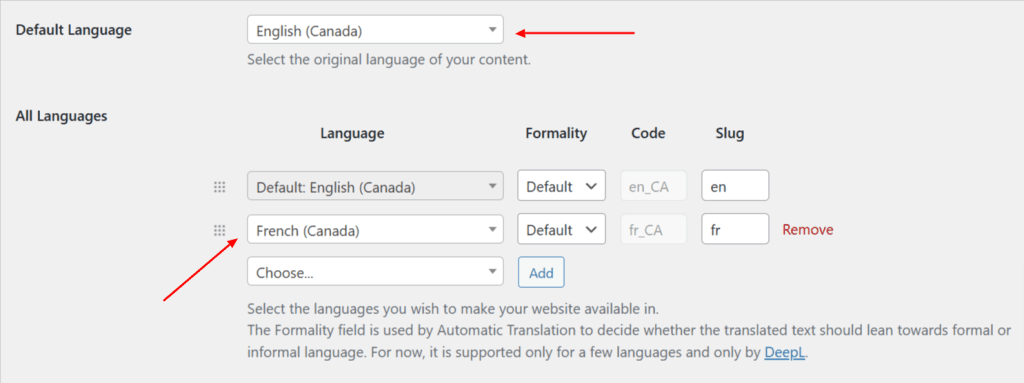
Customizing the Language Switcher
The language switcher is a critical component of any multilingual site, and TranslatePress offers several ways to customize it. You can add the switcher to your navigation menu through the WordPress Appearance settings, ensuring it’s easily accessible. Alternatively, you can enable the floating language switcher, which remains visible as users scroll through your site. The design, position, and labels of the switcher can all be customized to align with your branding and user experience goals.
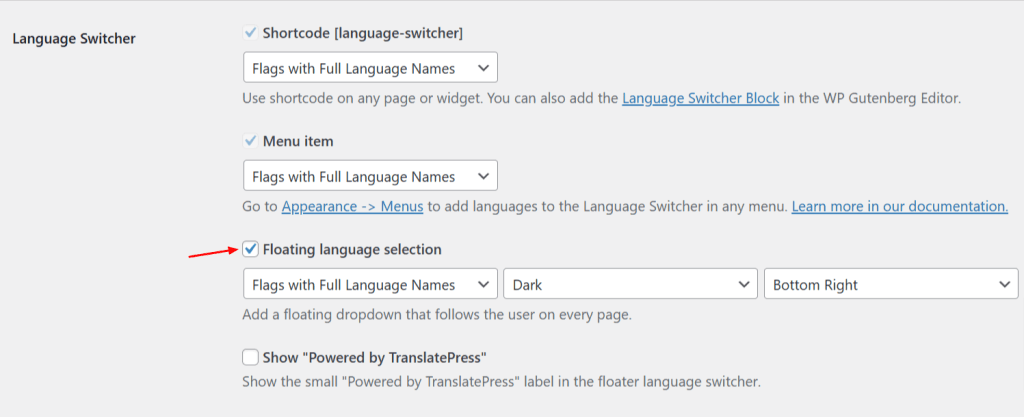
You will also find options to control how links behave. For example, enabling the “Force Language in Custom Links” option ensures all links point to the appropriate translated versions of your pages.
Translating Your Content
The hallmark of TranslatePress is its visual translation editor. Once the plugin is set up, navigate to your website’s front end and click the “Translate Site” button in the WordPress admin bar. This opens the visual editor, where you can see your site and its translations side by side.
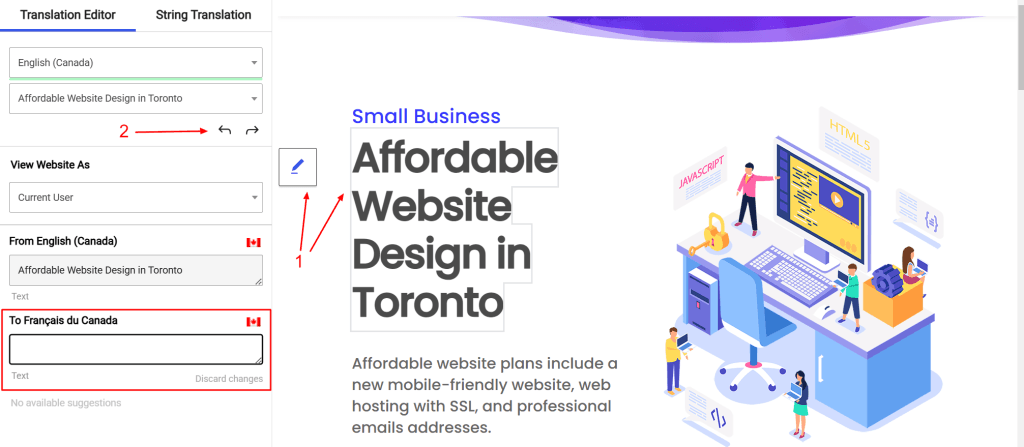
Hover over the text or element you want to translate, click the blue pencil icon that appears (marked as 1), and input your translation for the selected language.
You can also use the arrows (marked as 2) to iterate through the various text and strings available on the page and add the corresponding translation to the selected language.
For content that originates from themes, plugins, or shortcodes, you can use the string translation feature available within the visual editor. Search for the dynamic text you want to translate and provide the appropriate translation. TranslatePress also supports translating media elements like image alt texts and titles, which is particularly useful for optimizing your site’s SEO.
Automatic Translations
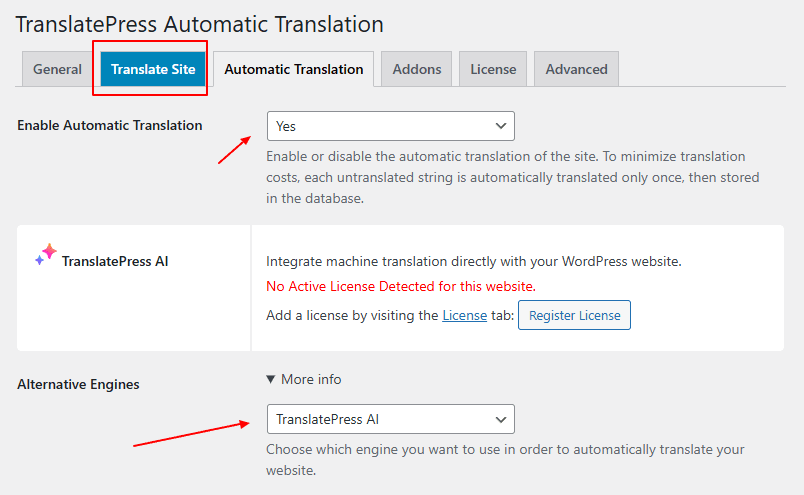
If manual translation feels too time-consuming, TranslatePress supports automatic translations via Google Translate or DeepL (a premium feature). To enable this, go to the Automatic Translation tab in the settings, enter your API key for the service you wish to use, and configure the rules for automatic translations. This feature can save significant time while still allowing you to review and refine the machine-generated translations.
TranslatePress has also launched a new translation engine called TranslatePress AI which they claim can automatically translate an entire website, accurately and efficiently.
Multilingual SEO Optimization
Search engine optimization is crucial for a multilingual website, and TranslatePress simplifies the process by automatically adding hreflang tags and supporting translated URL slugs. These features help search engines correctly index your content in different languages.
Additionally, with the premium version, you can translate meta descriptions, titles, and other metadata within the visual editor. These enhancements ensure your website ranks effectively in all the languages you support, driving more traffic from global audiences.
Testing and Maintaining Your Translations
After setting up your multilingual site, it’s essential to test its functionality thoroughly. Browse your site in each language to verify that all content is translated correctly and that the language switcher works as expected. Test the site on various devices and browsers to ensure a consistent user experience. Regularly review and update your translations, especially after adding new content or making significant changes to your website.
Advanced Features for Premium Users
For those who opt for TranslatePress’s premium plans, additional features enhance the multilingual experience. These include support for unlimited languages, access to TranslatePress AI, the ability to translate SEO meta data such the page Title, meta description and slug, user role control for managing translations, and conditional content display based on the active language. Such features are invaluable for larger websites or businesses with complex multilingual requirements.
TranslatePress offers a seamless way to create a multilingual WordPress site, catering to diverse audiences and expanding your reach. With its visual translation interface, powerful SEO tools, and flexibility, it’s an excellent choice for websites of all sizes. By following this guide, you’ll be well on your way to delivering a rich, multilingual user experience that resonates with visitors from around the world.
Join Our Newsletter
Stay up to date on the latest WordPress tips and news