How to Verify a WordPress Malware Cleanup Was Successful
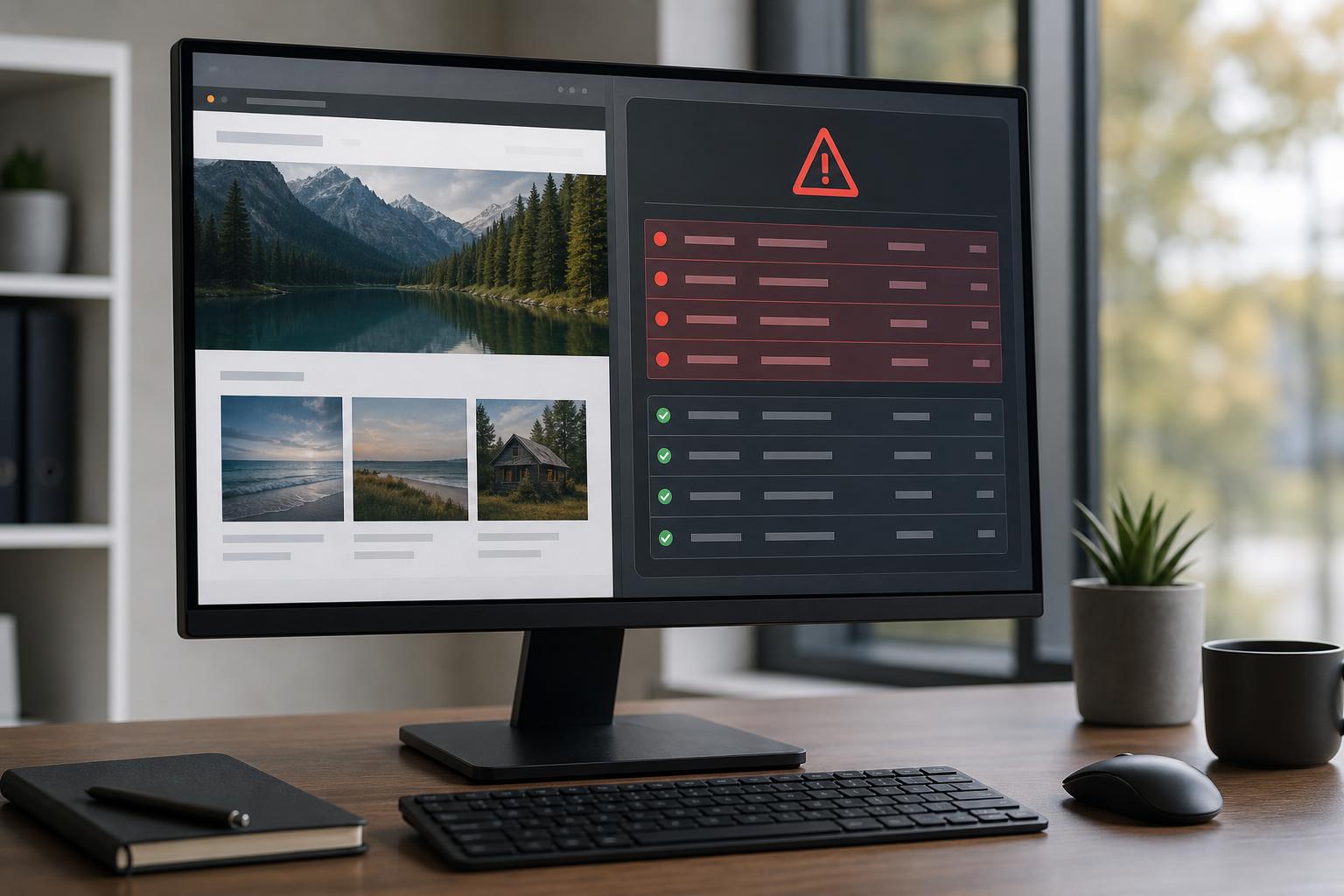
After a hacked WordPress site appears to be cleaned, it is understandable to want the incident behind you. The homepage loads, the obvious spam pages are gone, and a security scan may look better than it did yesterday. But a site can look normal while a hidden backdoor, unauthorized account, altered database entry, or unresolved access weakness remains in place.
For Canadian businesses that depend on lead forms, ecommerce orders, appointments, or published content, incomplete cleanup is not simply a technical nuisance. It can leave customers exposed to redirects, interrupt sales, damage search visibility, and create another emergency when the original infection returns. A proper WordPress malware cleanup is therefore more than deleting visible malicious code. It is a validation process: confirm what changed, remove what should not be there, close the route that allowed access, and watch for recurrence.
The warning signs below do not all prove that malware is still active. A slow page, for example, can result from a plugin conflict or hosting problem. Taken together, however, unusual behaviour after a cleanup is a strong reason to investigate rather than assume the work is complete.
Quick Answer
Your WordPress malware cleanup may be unfinished if redirects return, unfamiliar administrator accounts appear, suspicious files re-emerge, Google or browsers still show security warnings, or the site behaves unpredictably after updates. A reliable cleanup should validate files and database content, reset compromised access, apply security hardening, confirm backups, and monitor the site afterward so recurrence is caught quickly.
Key Takeaways
- Visible improvements do not prove that malicious access or altered content has been removed.
- Unknown administrator accounts, recurring redirects, and returning files deserve prompt investigation.
- Search or browser warnings are meaningful signals that require verification and follow-up.
- Cleanup validation should cover files, the database, credentials, hardening, backups, and Mnitoring.
- Ongoing maintenance helps detect reinfection before it becomes another business disruption.
Why a site can look clean before it is secure
Malware removal often begins with the visible symptom: a redirect, spam page, warning message, or broken checkout. Removing that symptom matters, but attackers may use more than one method to keep access. They can alter a theme or plugin file, add a disguised file in an uploads folder, create a user account, inject content into the database, or exploit an outdated component that remains installed after the cleanup.
That is why “the site is loading again” is an operational milestone, not a final security verdict. A clean front end only tells you what a visitor sees in that moment. It does not confirm the integrity of the WordPress installation, the database, account permissions, scheduled tasks, server access, or the software versions supporting the site.
A completed cleanup removes known malicious changes and addresses the conditions that made those changes possible. Validation then checks whether the website remains stable and free of the same indicators over time. These are related stages, but they are not interchangeable.
WPAssist generally treats post-hack work as a sequence rather than a one-time scan: stabilize the site, investigate the scope, remove or replace compromised elements, secure access, validate key business functions, and monitor what happens next. That approach is particularly important for WooCommerce stores and lead-generation sites, where a small hidden issue can affect revenue or customer trust before anyone notices.
What warning signs suggest malware may still be present?
The most useful signs are changes that cannot be explained by a planned update, an approved user action, or a known hosting event. Do not dismiss an odd event solely because it happens once, but do not diagnose malware from one symptom alone. Record what occurred, when it occurred, and whether it is repeatable from another browser, device, or network.
Redirects, pop-ups, and pages that change by visitor
A redirect that sends visitors to an unrelated domain is one of the clearest reasons to reopen the investigation. It may happen only on mobile devices, only to first-time visitors, only from search results, or only after a delay. That selective behaviour is precisely why a quick visit from the site owner’s usual browser can miss it.
Also investigate unexpected pop-ups, new advertising blocks, altered page titles or meta descriptions, strange footer links, and landing pages that you did not create. Check the homepage, top landing pages, contact forms, login screen, cart and checkout pages, and a few older posts. Use a private browsing window and test from more than one device where possible.
For example, a retailer may see a normal homepage while an Android visitor who arrives from a search result is redirected to a counterfeit promotion. The homepage looking fine is not evidence that the issue is resolved; the variation by referral source and device is the issue to document.
Unknown administrator accounts or changed permissions
Review Users in the WordPress dashboard and look beyond the username alone. Check each account’s email address, role, registration date, and whether the account belongs to a current employee, contractor, or approved support provider. An account that the owner cannot identify, especially one with administrator privileges, should be treated as a post-compromise indicator and investigated promptly. WordPress recovery guidance identifies unauthorized user creation as behaviour that can signal a hacked site.
Do not simply delete a suspicious account and move on. Determine whether other accounts have had their roles changed, reset WordPress passwords for legitimate users, and review hosting, SFTP, database, domain registrar, and email credentials as appropriate. If the attacker retained access outside WordPress, deleting one dashboard user may only remove the most visible trace.
Files, scripts, or scheduled activity that return
A file that reappears after removal is a warning sign, not proof of one specific cause. It could be restored by an infected backup, reintroduced by an unpatched plugin, written through a server-level access path, or recreated by another malicious file that was missed. Repeated changes to core WordPress files, unfamiliar PHP files in writable directories, modified theme files, or unexplained scheduled tasks deserve a closer review.
Pay attention to timing. If a suspicious file returns shortly after a particular visitor action, plugin update, backup restore, or cron run, that pattern helps narrow the investigation. Preserve relevant timestamps and avoid repeatedly overwriting evidence with rushed cleanup attempts.
Do search warnings and performance changes mean the infection remains?
They can be important signals, but neither should be treated as conclusive proof by itself. Search and browser warnings may persist while a review or warning-removal process is still underway, and performance can decline for many non-malicious reasons. The key question is whether the signal fits the incident history and appears alongside other unexplained changes.
Security warnings require a direct check
If a browser shows a red warning page, a search listing is labelled as risky, or Google Search Console reports a security issue, do not assume it is a harmless cache delay. Google explains that pages or sites affected by a security issue can display security warning signals in search results or an interstitial warning in the browser. Check the affected URLs, compare them with known clean pages, and document exactly what users are seeing.
A warning does not identify every remaining malicious file, and its absence does not certify that a site is clean. It does mean external systems have detected a security-related concern associated with the site, making validation and remediation a priority. Once the underlying issue has been addressed, follow the relevant platform process to request review rather than relying on a local scan alone.
Slowness is a clue, not a verdict
An unexplained drop in performance can be one of the first places to investigate after a compromise, especially if CPU use rises, pages intermittently time out, the server sends unusual requests, or a checkout becomes unreliable. Malicious scripts can consume resources, but so can oversized images, a traffic spike, database bloat, caching errors, or a poorly behaved plugin.
Compare current behaviour with records from before the incident if you have them. Review page load patterns, error logs, server resource usage, traffic sources, and outbound activity. A sudden change that began at the same time as the hack is more meaningful than a vague sense that the website feels slow.
For a WooCommerce store, test a real but controlled journey: open a product page, add an item to the cart, apply a coupon if applicable, reach checkout, submit a test order in a safe test environment, and confirm order emails and stock handling behave as expected. Malware cleanup is not complete if the storefront works only on the surface while a revenue-critical path is still broken.
What should proper malware cleanup validation include?
Validation should be broad enough to find persistence but focused enough to protect the live site from unnecessary changes. The exact work depends on the compromise, hosting setup, plugins, and available backups. Still, a credible process should show what was reviewed, what was changed, and what will be watched afterward.
First, compare WordPress core files with trusted originals and inspect active themes, plugins, mu-plugins, uploads, and custom code for unauthorized changes. Remove unused software rather than leaving dormant components installed. If a plugin or theme may have been altered, replacing it from a trusted source is usually more reliable than editing around a suspicious fragment without understanding its full scope.
Second, review the database. Malicious content can live in posts, options, widgets, user metadata, scheduled-event records, or injected settings that do not appear in a standard file scan. Look for unfamiliar administrator accounts, suspicious URLs, odd scripts, recently changed options, unexpected redirect rules, and content inserted into templates or posts. Database work should be handled carefully: an indiscriminate search-and-replace can damage serialized values and create new site problems.
Third, reset access and close the original weakness. That may mean updating WordPress, plugins, themes, PHP, and server software; removing abandoned extensions; rotating passwords and keys; reviewing user roles; enabling stronger login controls; and checking permissions. A cleanup that leaves the vulnerable plugin, reused credential, or excessive account privilege in place is incomplete by design.
Finally, validation needs an observation period. General small-business cybersecurity guidance emphasizes that logins, file access, and system changes leave records, and that logging and monitoring help identify anomalies or unauthorized behaviour. Applied to a WordPress incident, monitoring does not replace file and database review; it helps reveal whether suspicious activity returns after the site is put back into normal use.
Post-cleanup documentation is part of the deliverable, not paperwork for its own sake. It gives the business a baseline for future review and makes it easier to understand what was fixed if another provider, staff member, or insurer needs to assess the incident later.
What documentation should you receive after a cleanup?
You do not need a forensic report full of unexplained jargon, but you should receive enough information to make an informed business decision. If a provider cannot explain the work in plain language, it is difficult to know whether visible symptoms were patched or the site was properly validated.
A useful post-cleanup summary should identify the original symptoms, the likely entry point if known, the affected areas reviewed, and the corrective actions taken. It should also state any uncertainty. For example, if the original access route cannot be confirmed because logs were unavailable, that limitation should be clear rather than hidden behind a blanket assurance that the site is “100% secure.”
- Known malicious files, database entries, accounts, redirects, or spam content that were removed or replaced
- WordPress, theme, plugin, and server updates applied during the work
- Credentials, keys, or access paths that were reset, disabled, or reviewed
- Backup status, including whether a clean restore point was identified and tested
- Business functions tested, such as forms, checkout, account login, or email notifications
- Monitoring, follow-up checks, and any remaining actions assigned to the site owner
Be wary of a cleanup report that says only “malware removed” with no indication of scope, changes, or follow-up. It may be accurate for a narrowly defined emergency task, but it does not give you proof that the broader site environment was checked. Ask whether the database was reviewed, whether unknown users were investigated, whether the entry point was addressed, and what is being monitored now.
Fix this first when something still feels wrong
If you notice a fresh warning sign, avoid making a string of untracked changes on the live site. Hasty edits can erase useful clues, break a working function, or make it harder to identify how the problem returned. Start with containment and evidence, then move through a controlled sequence.
- Record the affected URL, device, browser, time, referral source, and screenshots of the behaviour
- Check WordPress users for unrecognized accounts or role changes and reset legitimate account passwords
- Review recent file changes, logs, scheduled tasks, and database changes for patterns tied to the incident
- Confirm that WordPress core, active themes, plugins, and PHP are supported and fully updated
- Verify that backups are clean, accessible, and suitable for restoration if the issue expands
- Test priority visitor journeys after changes, including forms, logins, cart, checkout, and transactional email
- Keep the monitoring in place long enough to identify a returning redirect, file, account, or alert
When the website handles personal information, transactions, or member accounts, consider the wider business response as well. Preserve records, determine who needs to be informed internally, and seek appropriate legal, privacy, payment-provider, or insurance guidance for your circumstances. Technical cleanup is one part of incident recovery, not a substitute for obligations that may apply to your organization.
WPAssist often sees the greatest avoidable risk after a hack when a business restores an old backup without confirming why the site was compromised. A backup is essential for recovery, but it can reintroduce an old vulnerability or malicious content if it is not selected and validated carefully. Maintaining cloud backups and uptime monitoring gives site owners both a recovery option and earlier notice when availability changes.
How ongoing protection reduces the chance of reinfection
No WordPress site can be promised permanent immunity from future threats. The practical goal is to reduce preventable exposure, limit the impact of an incident, and make abnormal behaviour visible quickly. That requires more than installing a security plugin and hoping it catches every problem.
Ongoing protection combines managed updates, careful plugin and theme management, least-privilege user access, strong credentials, backups, monitoring, and a response process. Each control covers a different part of the risk. Updates reduce known weaknesses; access controls reduce opportunities for unauthorized entry; backups support recovery; and monitoring shortens the time between a new problem and a response.
Layered protection means no single control is expected to do every job. A firewall may block some malicious traffic, but it cannot by itself verify that a database is clean. A backup may restore the site, but it cannot explain how credentials were compromised. Monitoring may detect recurrence, but it does not remove a vulnerable plugin. The controls work best when their roles are clear and maintained.
For business owners, the sustainable question is not whether you can personally perform every technical task. It is whether there is a reliable owner for each recurring responsibility: updates, backup checks, alert review, access changes, performance testing, and incident response. A documented WordPress website maintenance routine turns security from a reaction to the last emergency into regular operational care.
Conclusion
A malware cleanup is not fully finished because a scan is quiet or the homepage looks normal. It is finished when the site has been examined beyond the visible symptom, suspicious changes have been addressed, access routes and outdated components have been reviewed, core business functions have been tested, and monitoring is ready to catch recurrence.
If redirects, unfamiliar users, warnings, unexplained file changes, or post-hack instability are still affecting your site, WPAssist can help you move from a surface-level fix to a more complete WordPress security lockdown that supports validation, hardening, and ongoing protection.

Join Our Newsletter
Stay up to date on the latest WordPress tips and news